Why similar SVG weights can still have different path structure
Find and repair a command mismatch in three original SVG weights, then understand path order, point slots, strokes, transforms and the limits of a browser precheck.
An open frame with a horizontal bar is easy to draw in light, regular and heavy weights. The heavy version can look plausible after export while using a different set of SVG path commands. If your next step needs corresponding contour segments across weights, counting paths or point slots alone will miss that change.
This walkthrough checks and repairs two original paths. Open the SVG weight structure precheck and choose three local files, or paste their source. The tool uses Regular as the baseline and returns a path inventory plus individual differences. The comparison runs in the current browser.
The subject here is ordinary SVG XML and path structure. SF Symbols appears in the workflow because custom symbols can raise this question; these samples are independent original SVGs, with no Apple templates. Apple’s template format, interpolation, optical alignment and actual import have their own requirements. This precheck covers the items described below.
Reproduce it: equal counts, different commands
Download the original sample package. It contains matching/, mismatch/, repaired/ and malformed/, each with light.svg, regular.svg and heavy.svg. The drawings are provided under CC0 1.0 for you to adapt. The included README describes their origin and expected results.
- Choose the three files from
matching/in the Light, Regular and Heavy inputs, then select Compare structure. - Replace them with the files from
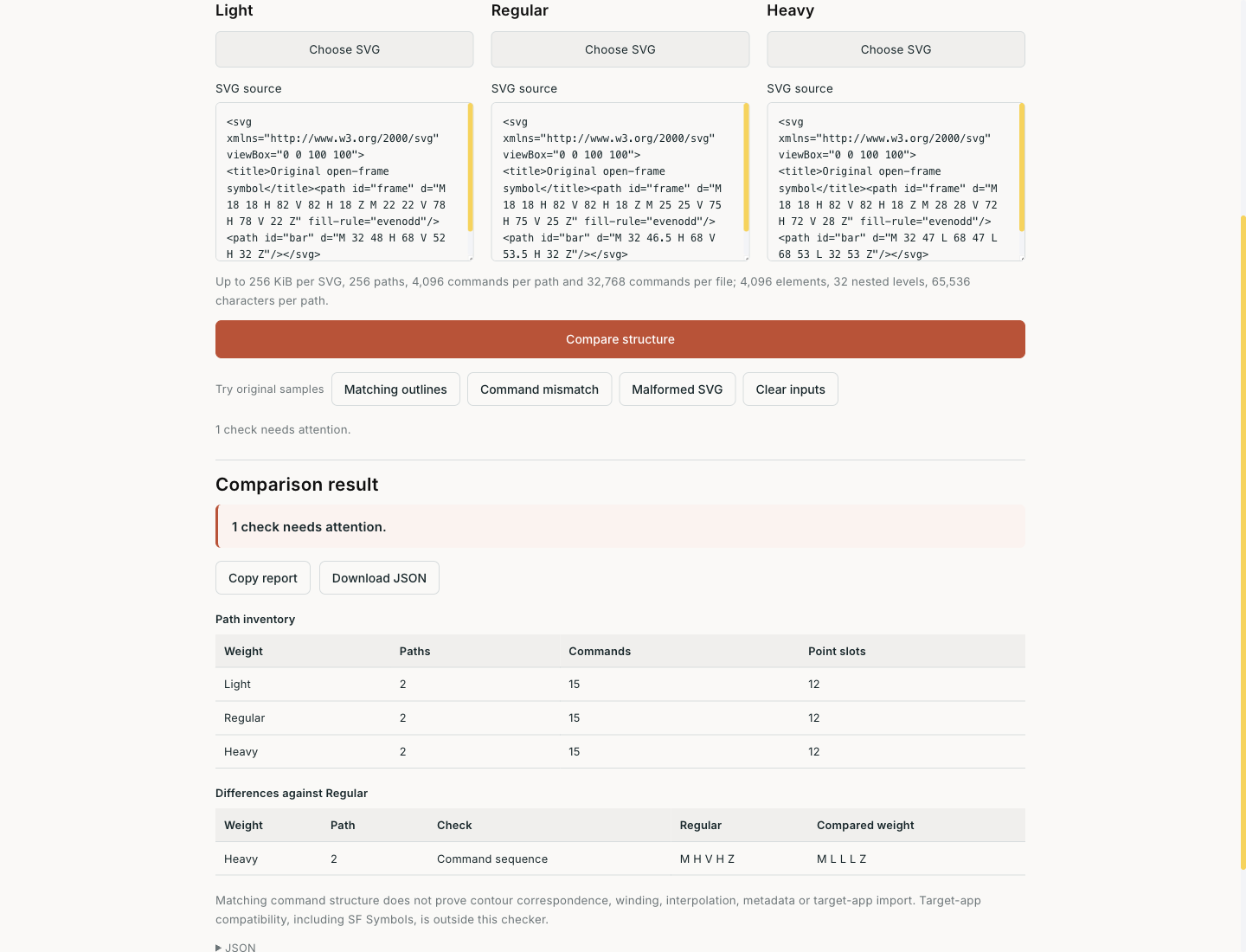
mismatch/and compare again. - Read both tables. Each file has 2 paths, 15 expanded commands and 12 point slots, yet the differences table identifies Heavy path 2.
The Regular bar uses:
<path id="bar" d="M 32 46.5 H 68 V 53.5 H 32 Z"/>The mismatched Heavy bar uses:
<path id="bar" d="M 32 47 L 68 47 L 68 53 L 32 53 Z"/>Each has five commands, but the horizontal and vertical edges use different expressions. The checker reports M H V H Z against M L L L Z. This means the second path has a different command structure. The report has not established whether the contours should correspond or assessed their visual quality.
Repair the structure while keeping the heavy geometry
In a design workflow, start each weight from the same path structure and adjust coordinates. Redrawing or converting a path independently in one weight can introduce structural drift. For this sample, the repair restores M H V H Z in Heavy path 2 and gives its bar the heavy thickness of 10 viewBox units:
<path id="bar" d="M 32 45 H 68 V 55 H 32 Z"/>This also corrects the overly thin bar in the mismatched example. The checker flags the command change; the designer still chooses the thickness. Copying all Regular coordinates simply to clear the report would discard the intended heavy geometry.
Choose the three files from repaired/ and run again. The differences table disappears while the inventory remains 2 / 15 / 12. The browser result now says there are no differences in the supported structural checks. Review contour correspondence and visual results before moving into the target application.
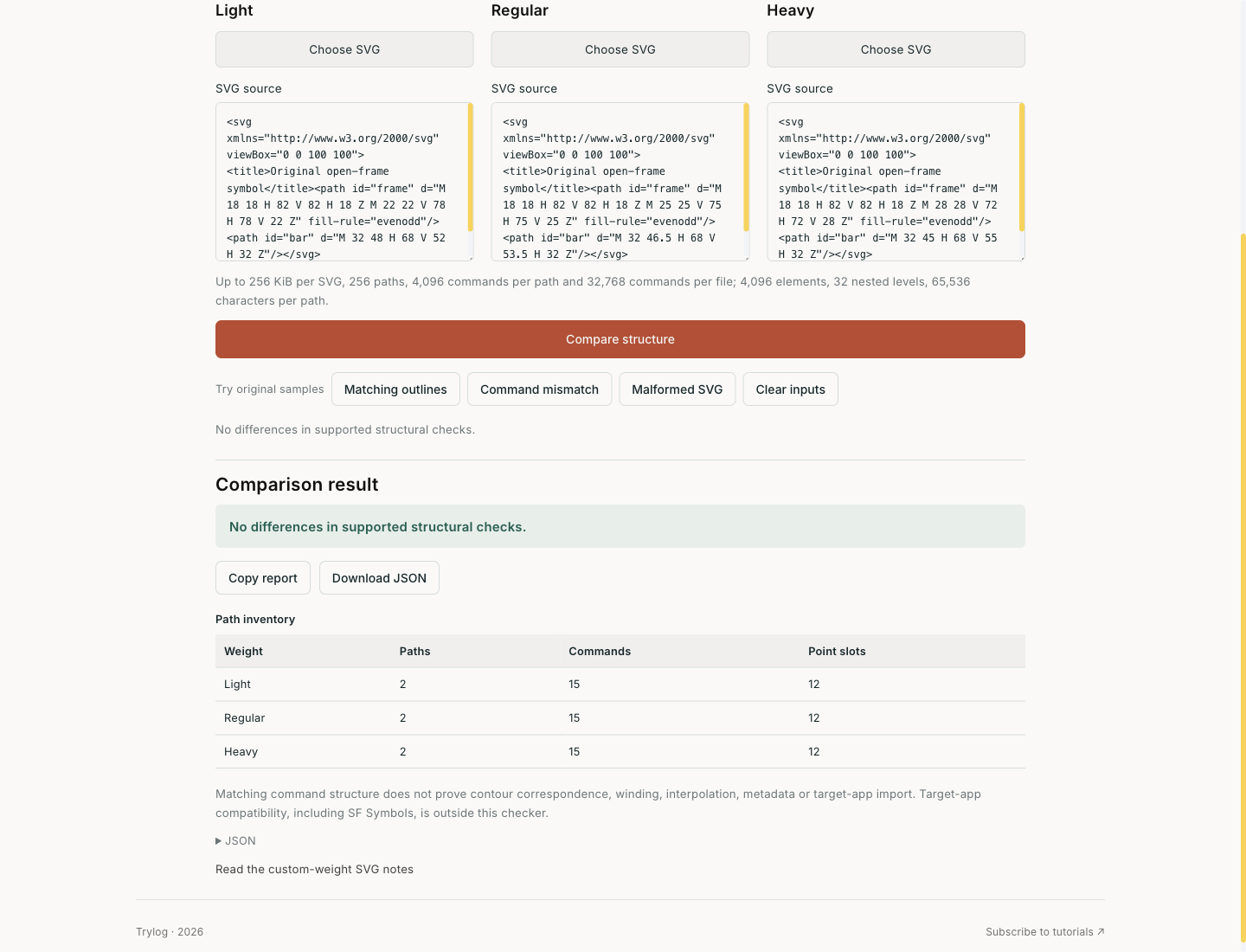
The repaired weights retain their own coordinates and share a command structure.
How text becomes a report
File reading uses the browser’s File.text(). The checker first applies byte and safety limits, then parses image/svg+xml into a separate document with DOMParser. It never inserts source into the live page as SVG and provides no contour preview. The original text remains available for inspection without activating file content to display it.
After format checks, the tool reads path elements in document order. It tokenizes each d into commands and finite numbers, checks parameter counts, and expands implicit repetitions. In M0 0 10 0 10 10Z, the first pair is M and the next two are implicit L commands, producing M L L Z. Repeated parameter groups after L also become separate commands. Relative and absolute commands remain distinct: m l z differs from M L Z.
| Report item | What it provides | How to read it |
|---|---|---|
| Path count | Extra or missing paths compared with Regular | Merging paths changes the count; check each path’s design role |
| Path ID / order hint | Different nonempty IDs at the same position | Without IDs, comparison remains positional and cannot recognize swapped contours with identical structure |
| Command sequence | Expanded command letters, preserving case | Geometrically equivalent H/V and L expressions still differ |
| Point slots | Endpoint and control-point slots consumed by commands | C counts as 3, Q as 2 and Z as 0; this is not an editor’s node count or a count of unique vertices |
| Stroke | Inherited stroke, width, cap and join from the path and ancestors | Any compared stroke triggers attention, even when both declarations are the same |
| Transform | Raw transform declarations on the path and ancestors | Declarations are retained without transforming coordinates; any compared transform triggers attention |
The JSON report contains summaries for each weight, differences and the checker version. Download it to your device or copy it for further review. Path IDs are included; filenames and full source are omitted. Your design identifiers may still appear, so save the report according to your own information-handling needs.
Stroke and transform notices follow a deliberate policy: equal d values can produce different contours with a different stroke-width or ancestor scale(). Return to the drawing source to decide whether to expand strokes or apply transforms, then export again. The checker preserves input and makes no automatic geometry changes.
Supported input and recovery
This version supports svg, g and path, plus title and desc metadata. Its attribute allowlist covers path data, IDs, canvas/viewBox and a limited set of presentation attributes. External links, events, entities, CSS, embedded content and unknown elements are rejected. Common rect, circle, use and defs elements are also outside this version. In a trusted drawing environment, convert shapes into independent outlines and check the exported files while keeping the originals for comparison.
Each SVG is limited to 256 KiB, 256 paths, 4,096 elements and 32 nested levels. A path allows up to 65,536 characters and 4,096 commands, with a 32,768-command total per file. Numbers must be finite with absolute values no greater than 10⁹. These budgets bound the work; reduce the scope of complex SVGs first. There is no server or cloud fallback.
Choosing a malformed/ file reports an XML error while keeping the existing input and result. After pasting or editing source, the previous report stays visible with a request to compare again; copy and download pause until it matches the input. Continue editing, or select Restore last comparison to return to the last successful input. Canceling file selection, exceeding the limit or a read failure does not replace existing content. Explicitly clearing inputs removes the comparison. If the module fails to load or JavaScript is disabled, the comparison button stays disabled and the page explains that files are not submitted.
Inputs, filenames, source and reports are absent from page URLs, long-term storage and computation requests. Page assets and existing visit analytics have their own network requests. Analytics measure visits, navigation and engagement time; this tool does not register SVG data as event fields. Leaving the page clears the current input and report and releases download Blob URLs.
What remains after a clean comparison
Matching command sequences can still trace contours in opposite directions, start at different vertices, or swap two contours that ought to correspond. A different fill-rule can change holes. This report does not compare coordinates, area, winding, fill rules, canvas/viewBox equality or contour self-intersections. An equal signature establishes equal command structure.
For an SF Symbols workflow, continue with the resources on the official Apple SF Symbols page and check the template and actual import in the target application. This precheck involved no native Apple software test. For ordinary Web icons, the inventory can help locate path merges, order hints and command drift introduced during export, then guide a focused repair in the source drawing.
For the underlying format, see MDN’s SVG path reference and the W3C path data grammar. The full grammar is broader than this parser’s verified subset. Compact arc syntax and other rejected forms may need explicit, separated parameters.