Generate an SVG rectangle with millimeter dimensions
Follow a real 100×60 mm SVG download to understand millimeter canvases, viewBox coordinates, strokes, preview scaling and printing limits.
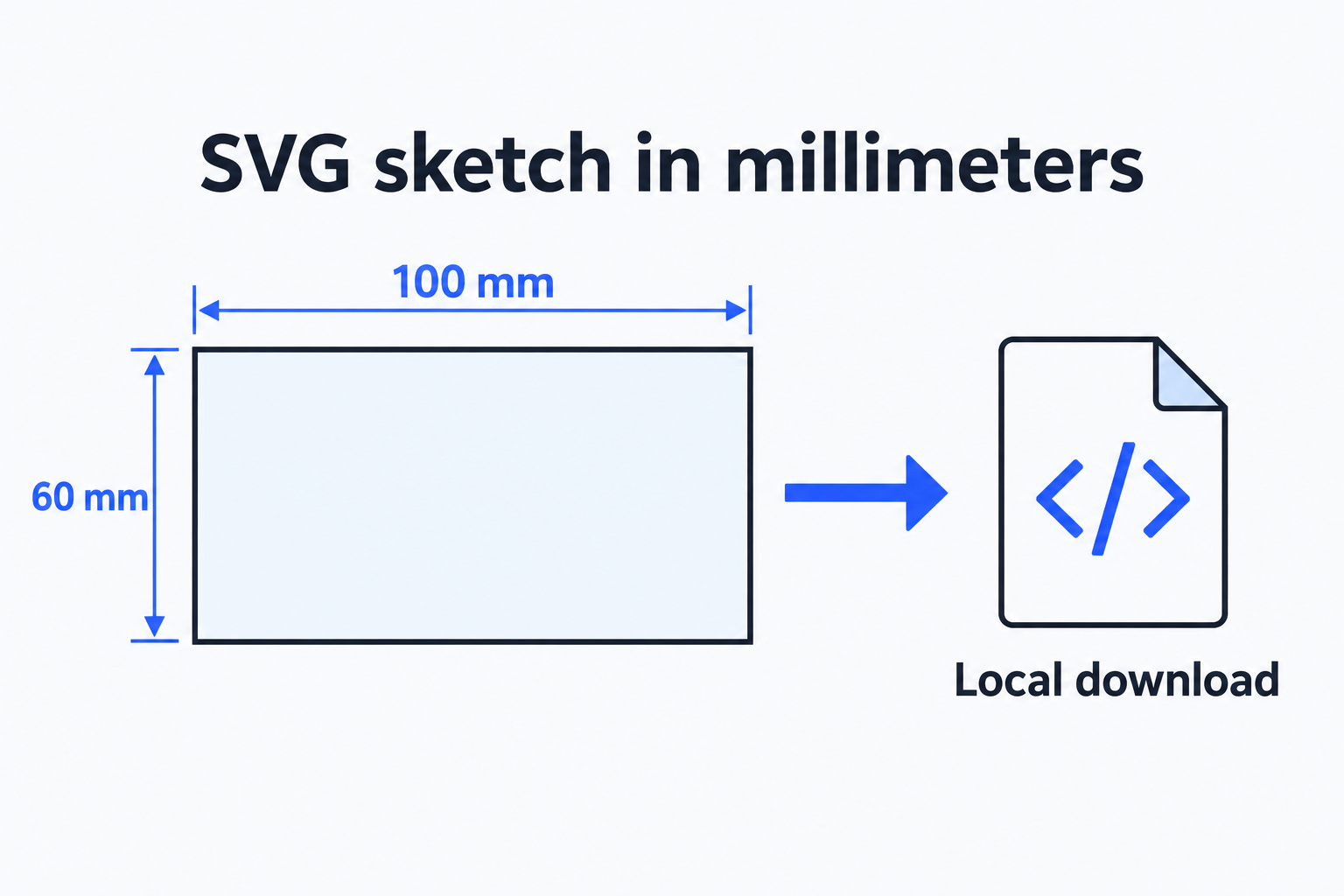
When you want a rectangular sketch 100 mm wide and 60 mm high, three sets of numbers can get mixed up: the millimeters you enter, the coordinates inside the SVG, and the pixels the browser displays. Connecting them gives the file a defined size. Measuring the web preview as though it were a ruler answers a different question.
The SVG sketch tool reduces this task to two inputs. It generates a rectangle outline, writes a millimeter canvas and a matching viewBox, then previews and downloads the result in your browser. This walkthrough follows an actually generated 100 × 60 mm file. For constraints involving multiple shapes, solid modeling or engineering tolerances, use software with those capabilities. This output serves simple two-dimensional sketches and exercises in how dimensions work.
From two inputs to a file
Open the tool, enter 100 for width and 60 for height, then select Generate SVG. Units are fixed to millimeters. Each side accepts 0.1 through 10000, inclusive, with up to three decimal places. Use a decimal point, such as 123.456; omit mm, decimal commas and scientific notation such as 1e2. That gives each string one interpretation and avoids silently rounding extra decimal places.
After generation, check the dimension caption, expand View SVG source, then select Download SVG. The actual download in this test was rectangle-100x60mm.svg. Preview and download use the same SVG bytes. Changing either input hides the old preview and download link. Generate again to get a file with the new values, avoiding a new-looking form that downloads an old result.
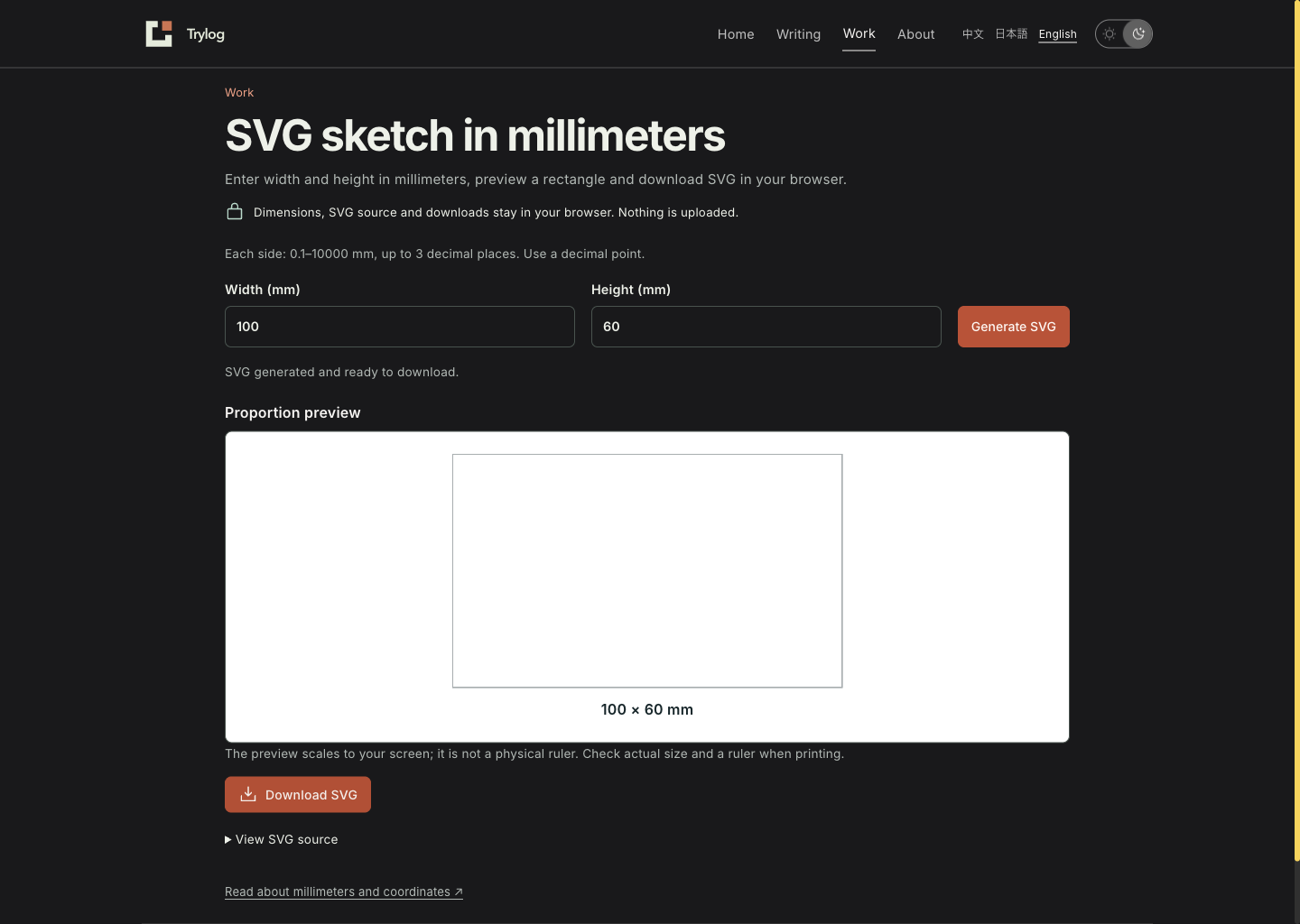
Dimensions, proportion preview and download follow the input fields in one workflow.
You can open the SVG downloaded in this test, save it locally and inspect it in a text editor. Its complete source is:

<?xml version="1.0" encoding="UTF-8"?>
<svg xmlns="http://www.w3.org/2000/svg" width="100mm" height="60mm" viewBox="0 0 100 60">
  <title>100 × 60 mm rectangle</title>
  <rect x="0.1" y="0.1" width="99.8" height="59.8" fill="none" stroke="#17262a" stroke-width="0.2"/>
</svg>
There are no image links, scripts or remote fonts. A root element, descriptive title and rectangle make up the file, which remains a standalone SVG text document after download.
What the millimeter canvas and viewBox each control
The root’s width="100mm" and height="60mm" declare the canvas’s nominal physical dimensions. viewBox="0 0 100 60" identifies the region of user coordinates displayed inside it: a top-left corner at (0,0), width 100 and height 60. Horizontally, 100 user units map to 100 mm; vertically, 60 map to 60 mm. At the file’s original size, one user unit therefore maps to one millimeter. MDN’s svg element reference and viewBox reference explain the separate responsibilities of these attributes.
The relationship follows from this file’s settings. Change viewBox to 0 0 200 120 while keeping the same millimeter canvas, and one user unit maps to 0.5 mm. Calling the coordinate numbers millimeters does not establish that mapping. Different canvas and viewBox aspect ratios also introduce preserveAspectRatio scaling and spacing rules. The tool keeps both width and height identical between them, avoiding another proportional condition.
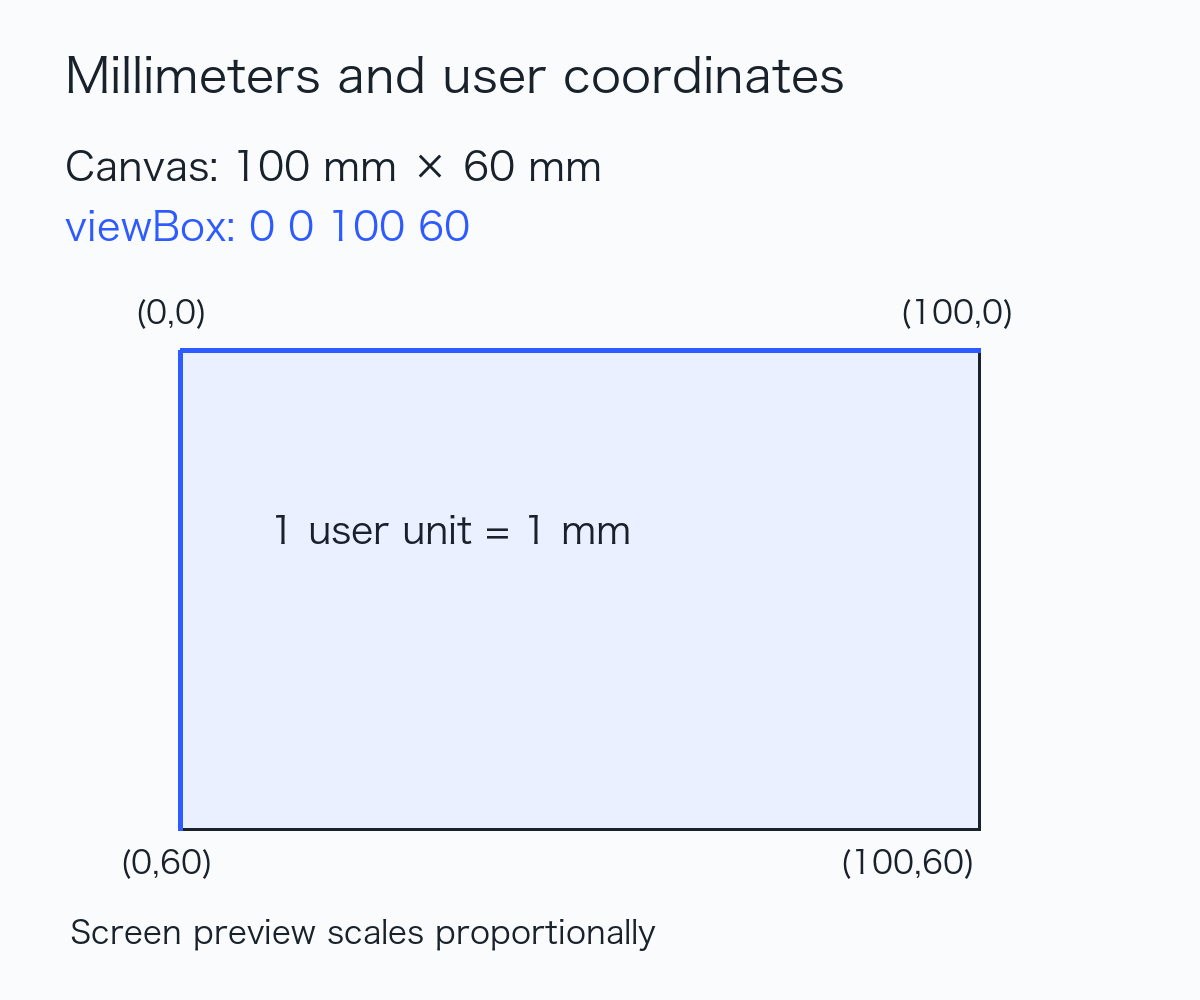
The canvas and coordinate region have matching dimensions; the corners use 0, 100 and 60.
In SVG’s initial coordinate system, x increases to the right and y downward. A rectangle’s x and y locate its path’s top-left corner; width and height describe the path’s span. Dimension annotations sit outside the web preview. The download keeps only the rectangle and title. Adding annotation margins would change the canvas dimensions, so an expanded file could no longer honestly be described as a complete 100 × 60 mm canvas.
Why the rectangle says 99.8 by 59.8
A stroke normally extends on both sides of its path. A path from (0,0) to (100,60) with a stroke width of 0.2 user units would extend 0.1 beyond the canvas. Its edges might be clipped. Enlarging viewBox to compensate would change the coordinate mapping.
The tool instead moves the path inward by half the stroke width: x=y=0.1. It subtracts one stroke width from each span, producing 99.8 × 59.8. The left outer edge is 0.1−0.1=0; the right outer edge is 0.1+99.8+0.1=100. Vertically the same calculation gives 0 and 60. Here, 100 × 60 refers to the canvas and outline’s outer extent. The open space inside is approximately 99.6 × 59.6. A task concerned with internal space needs that separate definition.
The usual stroke width is 0.2 user units. Very small dimensions use min(0.2, width/10, height/10) so the rectangle remains valid. Stroke width is a display choice, not a manufacturing tolerance. Supporting input increments of 0.001 mm likewise describes input resolution; it does not establish equivalent accuracy for paper, a display or a printer.
Why you cannot measure the screen preview
The tool fits the SVG into a responsive preview while preserving its aspect ratio. Desktop and phone widths differ, so the same file appears at different pixel sizes. CSS absolute units also have a reference relationship of 96px to 1in. CSS pixels, device pixels, zoom and the actual display’s dimensions have their own relationships. The 100 mm caption describes the file; it does not guarantee that a ruler held against the screen will measure 100 mm.
To check it on paper, place the SVG in a viewer or layout application that preserves dimensions. Confirm that the object is still 100 × 60 mm. Select actual size or 100% printing and turn off automatic fit-to-page scaling. Finally, measure the outer outline with a ruler. A changed page, printer-driver scaling or paper too small for the object can alter the result. This test verified the file and browser download; no physical print was measured, so it provides no printing-error guarantee.
Invalid input and browser limits
In an actual Chromium 152 browser, this test downloaded the 100 × 60 sample and tried an empty value, zero, a negative number, 10000.001, four decimal places, letters and exponent notation. Each produced the range and format guidance, hid the old result and moved keyboard focus to the invalid field. 0.1 × 10000, 10000 × 60 and 123.456 × 60 generated successfully. An extreme aspect ratio can look almost like a line on screen. The dimension caption and SVG source remain available for checking; near invisibility does not mean the file has no width.
The tool uses Blob, object URLs and a download link. It needs neither file-system permission nor a processing server. Actual verification covered desktop and a 390-pixel narrow viewport, light and dark themes, Enter to generate, and local download. Safari, Firefox, physical phones and individual applications’ SVG imports have not been tested separately. If the required local download capability is absent, the interface displays a clear failure message.
Width, height, SVG source and the derived filename are generated within the current page. They are neither added to the URL nor persisted in browser storage. Preview and download share an in-memory Blob; editing inputs or leaving the page releases its object URL. Site measurement and sketch content follow separate paths: the tool does not send these inputs or results, while the website can still record visits and navigation under its existing rules. For sensitive work, also consider the browser environment, extensions and the application you later use to open the file.
Once you understand the file, a useful check order is the root’s millimeter dimensions, then the viewBox coordinate ratio, then strokes and any downstream software that could resize it. To make your first example, open the SVG sketch tool and start with 100 and 60.