Grok Bot Developer Workflows: Task Hand-offs from Feedback to Reviewable PRs
Practical Grok Bot workflows for developers: turning vague feedback into reproduction materials, coordinating coding agents for PRs, and handing off product data.
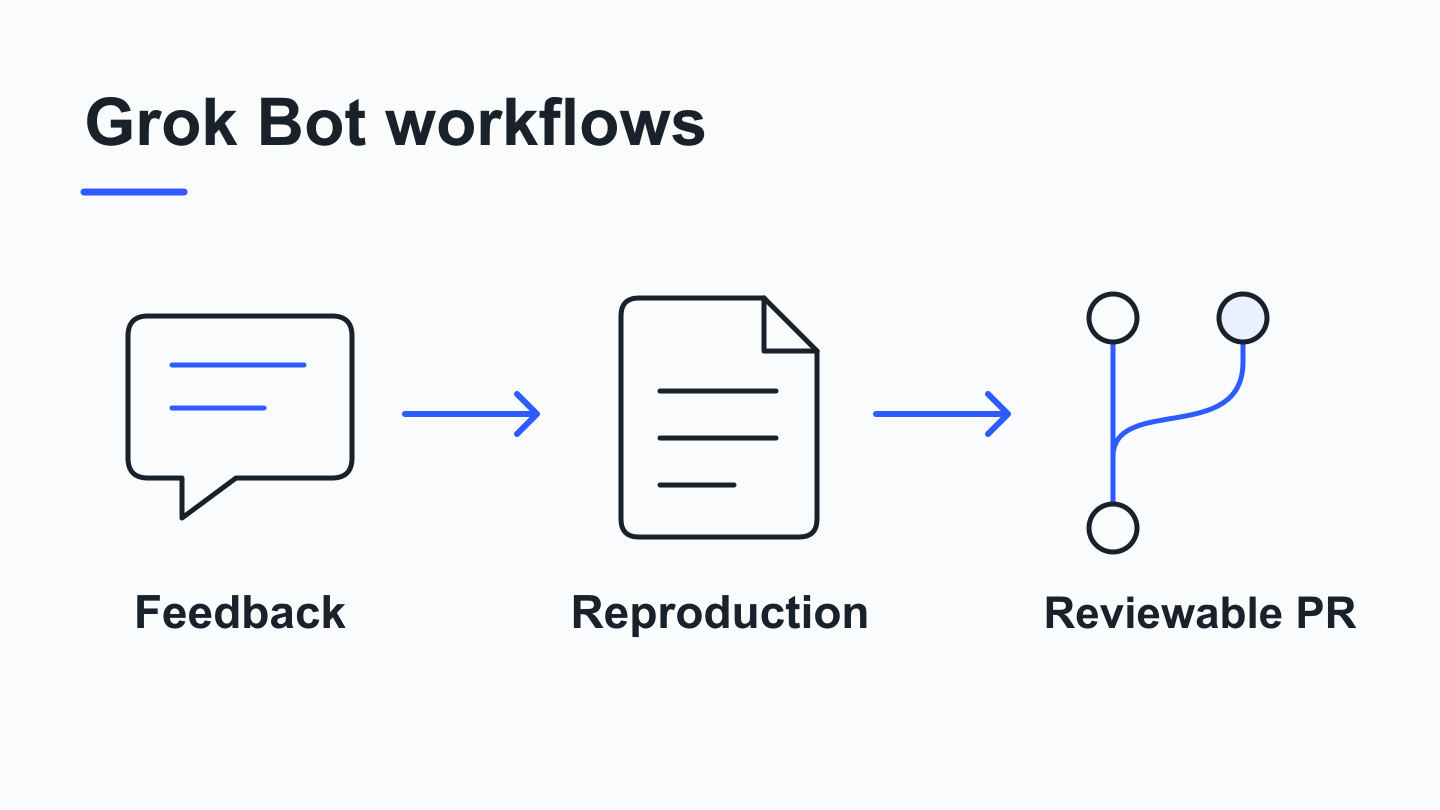 Moving from vague feedback to reproduction materials and a reviewable PR through clear task hand-offs.
In day-to-day software development, a surprising amount of time goes into passing information back and forth before and after code is written. You open your messages on Monday morning to find a short note saying “export is wrong,” with no operating steps and no screenshot. A developer has to ask follow-up questions, try to reproduce the issue locally, turn scattered clues into a ticket, inspect the code, open a PR, check CI results, and revise based on review comments. Every step waits on information from the previous one, and whenever a condition is left unrecorded, the next person picking up the task has to verify everything from scratch.
If you need details on account eligibility, client connections, subscription tiers, or basic cloud computer setup, refer to our earlier Grok Bot Getting Started Guide. Rather than repeating setup instructions, this article focuses on task design and hand-offs in everyday engineering: which tasks Grok Bot is suited to handle, how to move from raw input to a hand-off-ready deliverable, and what practical difficulties and trade-offs come up along the way.
When assigning work to Grok Bot, the key preparation is defining what gets handed back. Raw chat history is difficult to use directly as input for the next engineering step; what actually helps the next person continue working is a set of reproduction steps, a screen recording of the issue, a concise change summary, or a reviewable Pull Request saved to a predictable path. The table below outlines the input tasks, the process the Bot carries out, and the resulting deliverables across three common scenarios:
| Input Task | Process Advanced by the Bot | Hand-off Deliverable |
|---|---|---|
| Support tickets, chat bug reports, release feedback | Follow specified steps in the browser, record video of the abnormal state, and categorize release feedback and churn reasons | Reproduction step notes, abnormal state video, categorized issue list |
| Confirmed reproduction materials or feature requests | Launch and monitor coding agents, inspect execution logs and screenshots, track CI, review comments, and merge conflicts, and update task status | Reviewable PR with verification notes, updated task status record |
| Ad performance, attribution, and product usage data | Read and summarize multi-source data, surface positioning or feature adjustment directions, and hand findings to creative or dev roles | Data observation summary, positioning shift or feature change draft |
Scenario 1: From Vague Feedback to Reproduction Materials
First-hand feedback reaching an engineering team often describes only the end symptom without the trigger conditions. The official Grok Bot for Support guide shows how support teams handle this: using Grok Bot to reproduce customer support issues into concrete operating steps and videos of the abnormal state, while also categorizing release feedback and user churn. Having the Bot run an initial reproduction pass turns a vague complaint like “this feature is broken” into “performing these exact actions on this page produces this specific result,” narrowing down where the next developer needs to look.
To make a browser reproduction task useful for downstream debugging, your instructions need to specify a clear starting page, sample data, and observation points rather than just forwarding a raw complaint. When an engineer picks up a bug report, they need to know which route was used, what filter conditions were active, and how the actual output differed from what was shown on screen. Recording these observations during reproduction gives the next step a concrete baseline to check against the codebase.
When designing a reproduction task, you can instruct the Bot to carry out four steps in order: first, open the target test URL and load known sample data; second, click or filter along the suspected trigger path; third, when an unexpected page state or mismatched export output appears, save a screenshot, video recording, or the raw exported file; and fourth, write the executed steps and the discrepancy between expected and actual behavior into a Markdown note at a specified path. While a video or reproduction note alone will not automatically reveal the root cause in the code, it gives the developer verified inputs and outputs so they can inspect the corresponding frontend component or API parameters directly without guessing what the user clicked.
Scenario 2: From a Defined Task to a Reviewable PR
Once reproduction materials or feature details are ready, the workflow moves to implementation and PR tracking. In Lingxi Li’s official engineering guide, Lingxi Li describes how Grok Bot takes incoming tasks, launches Cursor cloud agents, and inspects execution logs and screenshots. To help the Bots stay on top of work beyond the context limit and let the author scan progress without scrolling through long chats, each engineer Bot manages a shared Notion database and reviews it every 30 minutes to check each PR for CI status, code review comments, and merge conflicts—using auto-merge for low-impact, high-confidence changes and leaving other decisions to a human.
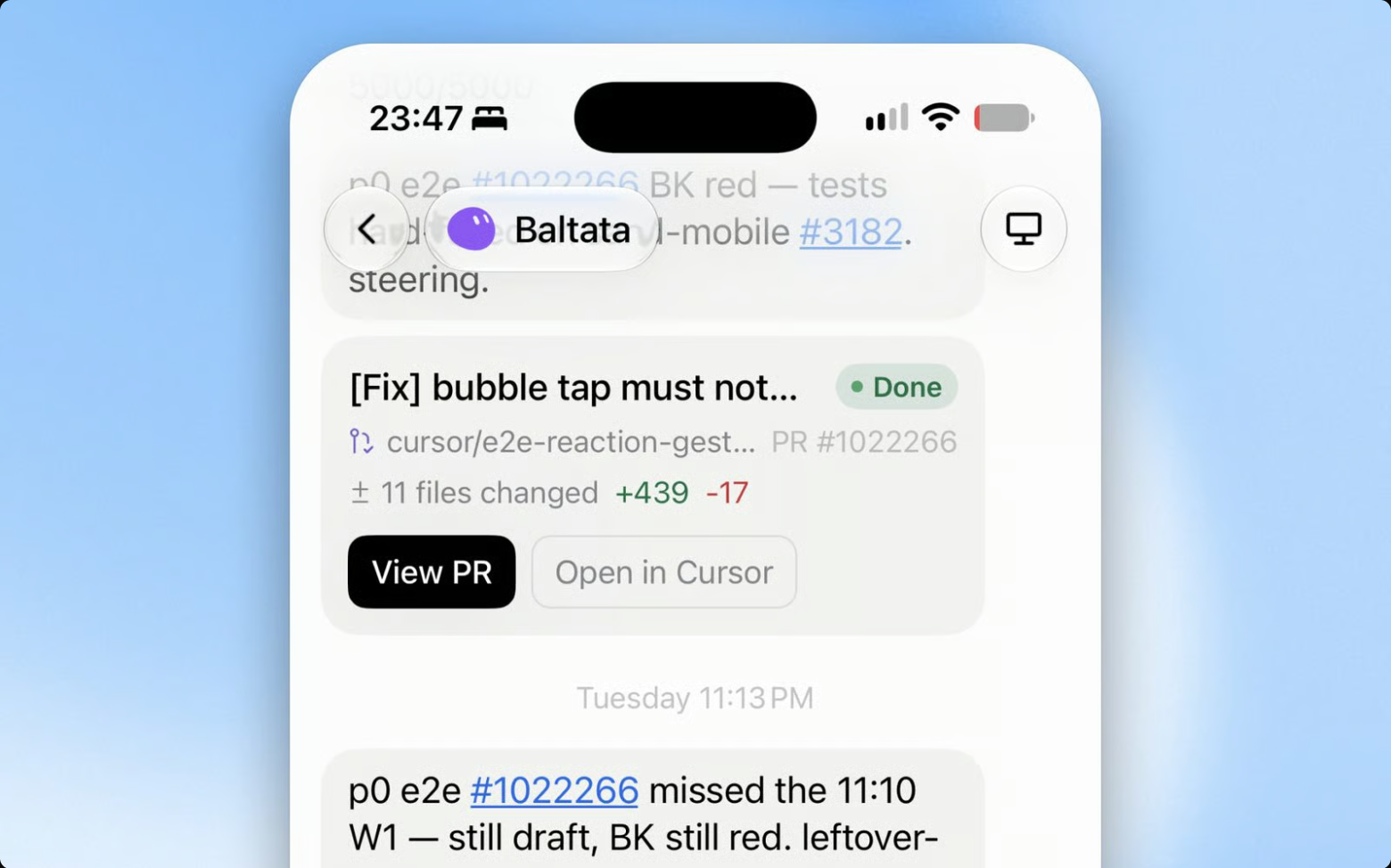 Task cards and PR entry point in the official engineering guide (source: x.ai), showing coding agent task cards, status messages, and the View PR button.
This setup illustrates a practical division between coordination and coding. If a single session tries to write extensive code changes while also checking CI logs, inspecting screenshots, and responding to review comments, the context quickly fills up with build output. When designing your own workflows, you can put Grok Bot in the coordinating role: have it invoke coding tools or run test suites, check whether tests pass and screenshots match expectations, watch for branch conflicts, and compile those findings into a clear hand-off note. When the project owner opens the PR, the basic build checks and output comparisons are already documented, making it easier to continue reviewing the business logic and edge cases.
How you set merge permissions depends on your project’s risk tolerance. While Lingxi Li uses auto-merge for low-impact, high-confidence changes in the official case, our task design example below explicitly sets the boundary to submitting a reviewable PR while leaving the merge decision to the project owner. That boundary is a practical choice rather than a product limitation: the Bot handles branch edits, test runs, and PR preparation, while a human retains final sign-off on what lands in the main branch.
Scenario 3: From Product and Attribution Data to Concrete Changes
Beyond bug reports and planned features, engineering work also starts from product metrics and campaign performance. In Ryan Perry’s official Rank’em mobile app development guide, Ryan Perry describes how a data role reads ad performance, attribution records, and product usage data, then hands those findings to creative or development roles; in that workflow, data findings led to shifting ad positioning from party scenarios to a two-player focus, alongside adjustments to in-app prompt features.
When connecting data analysis to engineering execution, the main challenge is that a metric shift does not automatically specify a code change. Passing raw spreadsheets directly to a developer leaves it unclear which screen element needs adjustment or what assumption is being tested. To make the hand-off actionable, the data-reading step needs to record three concrete points: which metric or behavior pattern was observed, which screen or user segment is involved, and what specific copy or interaction change is proposed next.
Human review is critical at this hand-off point. A Bot can gather attribution tables, compare metrics across entry points, and draft a code change for an in-app prompt, but metric shifts can be skewed by campaign timing or tracking changes. Having a project owner review the data summary first and decide whether the proposed adjustment makes product sense prevents the team from rewriting UI code in response to routine data fluctuations.
Task Design Example: Investigating Archived Rows in a Filtered CSV Export
To show how to write a clear, actionable task specification, let’s look at a task design example for a small web export issue: in an existing admin list page, after switching the filter from “all” to “active only,” the on-screen table correctly displays only active rows, but clicking “Export CSV” downloads a file that still contains archived rows.
Suppose the code repository is already present in the workspace and the test list page is running with sample data containing both active and archived records. We do not need to build an elaborate state-tracking system for a single bug fix, nor should we pre-assume where the bug lives. Instead, we instruct the Bot to compare the filtered page results against the exported CSV content first, trace the export logic based on that evidence, run relevant checks after applying a fix, open a reviewable PR, and return a brief Markdown note.
You can assign the task like this:
Task Goal: Investigate and fix the issue where exporting
  CSV after filtering the list to 'active' still includes
  'archived' rows.

1. Environment & Input: Use the existing repository at
  `/workspace/app-repo` and the running test list page
  (populated with active and archived sample records).
2. Reproduce & Compare: On the list page, change the
  status filter from `all` to `active` and note the row
  IDs shown on screen. Click "Export CSV", save the file
  to `/workspace/notes/export-active-test.csv`, and
  compare the on-screen rows against the CSV rows.
3. Locate & Fix: Based on the network request, filter
  parameters, and the discrepancy in the CSV output,
  inspect the export implementation in the repository and
  create a branch to fix the logic so exported rows match
  the active filter.
4. Verify & Check: Re-run the export from Step 2 to
  confirm the CSV contents match the filtered view, and
  run existing export-related tests in the repo. If
  blocked by environment issues or failing tests, record
  the exact error and stop rather than retrying
  indefinitely.
5. Hand-off Deliverable: Open a reviewable Pull Request
  (do not auto-merge), and write a brief summary in
  `/workspace/notes/export-active-handoff.md` covering
  reproduction steps, observed cause, modified files and
  PR number, and any open items for human review.
This prompt keeps the inputs, verification steps, and stopping rules together. As the Bot works through the task, you can have it record its actual findings in /workspace/notes/export-active-handoff.md using the following fields:
# CSV Export Filter Hand-off Note

- **Reproduction Steps**: Record the test page URL
  accessed, the filter conditions applied, the exact
  sequence of actions taken to export, and the file path
  where the exported CSV is saved.
- **Actual Observations & Cause Clues**: Document the
  exact discrepancy observed between the on-screen table
  rows and the exported CSV content, along with the cause
  clues found while inspecting request parameters,
  frontend handlers, or backend endpoints.
- **Code Changes & PR**: List the modified files, the
  outcome of relevant tests or checks run, and the branch
  name and PR identifier submitted for review (or note the
   exact blocker if a fix could not be completed).
- **Open Items**: List any edge cases, side effects, or
  open questions that the project owner needs to verify
  before deciding on changes or merge.
When a hand-off note follows this structure, the reviewing developer does not have to read through full chat or terminal logs from scratch. They can first verify whether the recorded observations and cause clues match the codebase, check the open items against the PR diff, and decide whether to merge or request further adjustments.
Practical Difficulties and Underlying Platform Mechanics
When delegating tasks to Grok Bot regularly, teams also need to account for coordination habits and how the underlying platform handles files, scheduled runs, and usage.
Independent author Fujiken (ふじけん), in his practical write-up, described using GitHub Issues to manage tasks where Bots handled development, research, and content drafting—producing public outputs such as the MC Blueprint site and an article on using the Grok API with the OpenAI SDK—while keeping publication and merge decisions in human hands. During his workflow, Bots sometimes held inconsistent understandings of whether a task had been approved, which was resolved by recording approval status explicitly; he also noted that group chats consumed high usage, leading him to use one-on-one chats more often in daily work. As a practical takeaway, teams can record approval decisions explicitly in an Issue or hand-off note and prefer focused one-on-one prompts over multi-bot group chats.
Regarding files and workspace state, the current Computer and Apps documentation explains that tasks under the same account share files, login sessions, and command-line credentials; separate screens are not isolated from each other, and persistent files belong in /workspace. Because of this shared environment, point your task prompts to explicit file paths under /workspace for saving sample outputs and hand-off notes. When resuming an interrupted task, having the Bot read the existing notes or artifacts in /workspace first helps it see what was already completed—though you still need to avoid running parallel tasks that switch branches in the exact same repository directory at the same time.
If you use scheduled Routines for asynchronous follow-ups, keep the limits documented in the Routines help guide in mind: Automation run rate limit exceeded is a shared platform rate limit distinct from your personal account balance, and runs that hit this error do not automatically retry. Furthermore, creating a schedule does not trigger an immediate run, whereas clicking Test executes the routine and consumes usage. Because a scheduled check can be skipped without automatic retry when hitting rate limits, do not treat Routines as guaranteed on-the-minute triggers; always check the status recorded by the most recent run when picking a task back up.
Finally, the Plans help documentation notes that usage is tied to agent steps and tokens rather than the number of chat messages sent. When evaluating how much a workflow consumes, track usage before and after specific tasks alongside retry counts and points where human intervention was needed. Multiple retries during a run do not automatically mean your prompt was too short—they can also stem from flaky tests, slow page loads, or environment bottlenecks—so checking the hand-off record to see where steps were spent helps you adjust the next task accordingly.
Starting with One Existing Task
You do not need to reorganize your team’s entire workflow at once to put these practices to work. Pick a single existing task from your current backlog with clear boundaries, such as a filter export mismatch or a small UI bug that needs reproduction and a patch. Set up a clear file path under /workspace, write a 12-to-18-line task prompt specifying the inputs, comparison steps, and a short Markdown hand-off note, and keep the merge decision with the project owner. Running one real task from initial input to a reviewable PR will show you what context your team actually needs in a hand-off, giving you a concrete baseline to refine future prompts.