Preserve Precision in HEX to Decimal Conversion with BigInt
Use JavaScript BigInt to convert HEX strings exactly, interpret signed values at a chosen bit width, and keep batch input errors easy to trace.

When writing a HEX to decimal converter, it is easy to start with parseInt(hex, 16). Try FF, get 255, and it looks finished.
A longer value reveals the problem.
parseInt("20000000000001", 16)
// 9007199254740992

BigInt("0x20000000000001").toString(10)
// "9007199254740993"
The same input produces results that differ by 1. That difference is easy to miss in a long string of digits.
JavaScript’s maximum safe integer for Number is 9007199254740991, or 2 to the power of 53 minus 1. At 2 to the power of 53, the spacing between representable integers becomes 2. Here, 9007199254740993 is rounded to 9007199254740992.
I tried these values in my local HEX batch converter. Following the inputs through to the results also brings up bit width, signed values, and byte order, so I worked through them together.
Parse the string directly with BigInt
Keep the input as a string from the start. The core conversion can look like this:
function hexToDecimal(input) {
  const hex = input.trim().replace(/^0x/i, "");
  if (!/^[0-9a-f]+$/i.test(hex)) {
    throw new Error("请输入完整的 HEX 整数");
  }
  return BigInt("0x" + hex).toString(10);
}

hexToDecimal("0x20000000000001");
// "9007199254740993"
Validate the entire input, parse it with BigInt, then use toString(10) to get a decimal string. Every digit stays intact through the conversion.
If the value goes through parseInt or Number before reaching BigInt, it has already been rounded. BigInt receives that 9007199254740992 as it stands. This is why the conversion starts with a string.
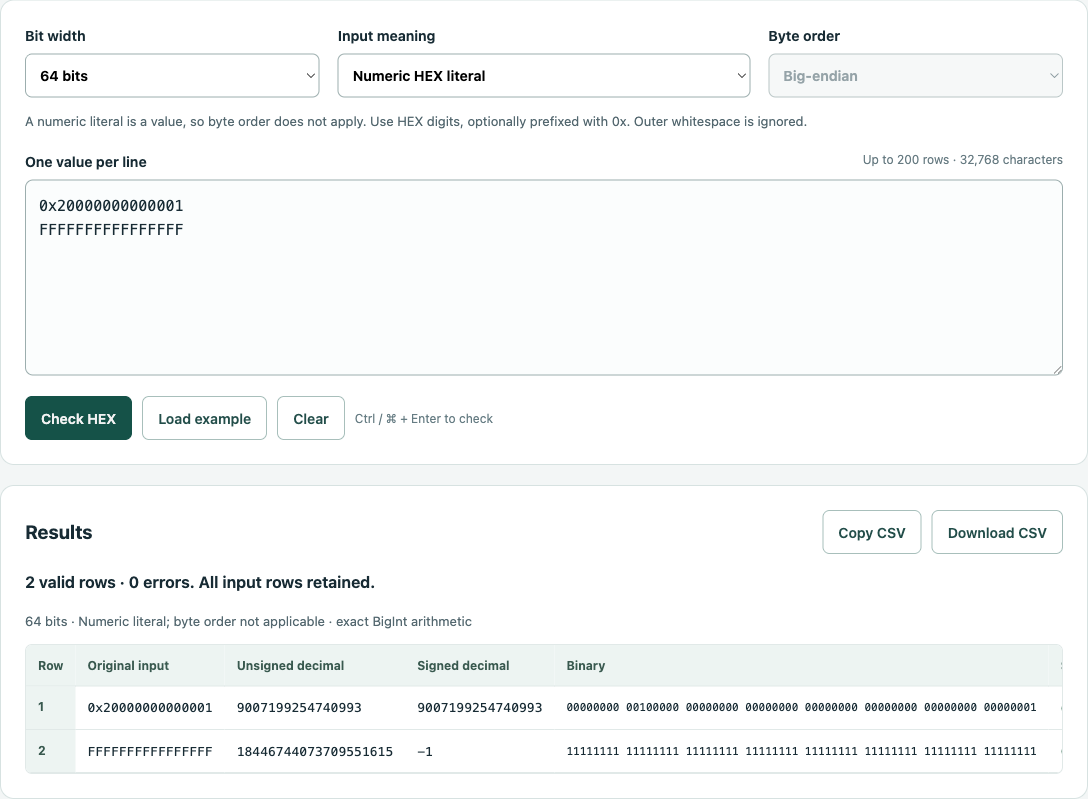
Figure 1: In 64-bit mode, both rows retain their complete decimal results.
Signed and unsigned interpretations of the same HEX
In the second row, FFFFFFFFFFFFFFFF gives an unsigned value of 18446744073709551615 and a signed value of -1.
These values come from two ways of interpreting the same bits. As an unsigned integer, all 64 bits contribute to the value. In 64-bit two’s complement, a set highest bit indicates a negative value, so subtract 2 to the power of 64 from the unsigned value.
A shorter 16-bit example makes this easier to see: 0x8000 has an unsigned value of 32768. In two’s complement, that becomes 32768 - 65536 = -32768. Choose 32 bits and the highest bit moves; the same 0x8000 then has a signed value of 32768.
The tool makes bit width an explicit setting and displays both decimal interpretations side by side. When reading logs or protocol fields, check the field’s width and signedness first, then use the matching column.
Keep errors on their original rows
For batch conversion, I want every pasted row to appear in the results. Valid values show normally, while errors stay in place with an explanation beside them.
For example, enter three rows in 16-bit mode: 0x8000, 0x10000, and 0xG1. The first gives 32768 and -32768. The second is 65536, which exceeds the unsigned 16-bit range. The third contains G, so the format check flags it.
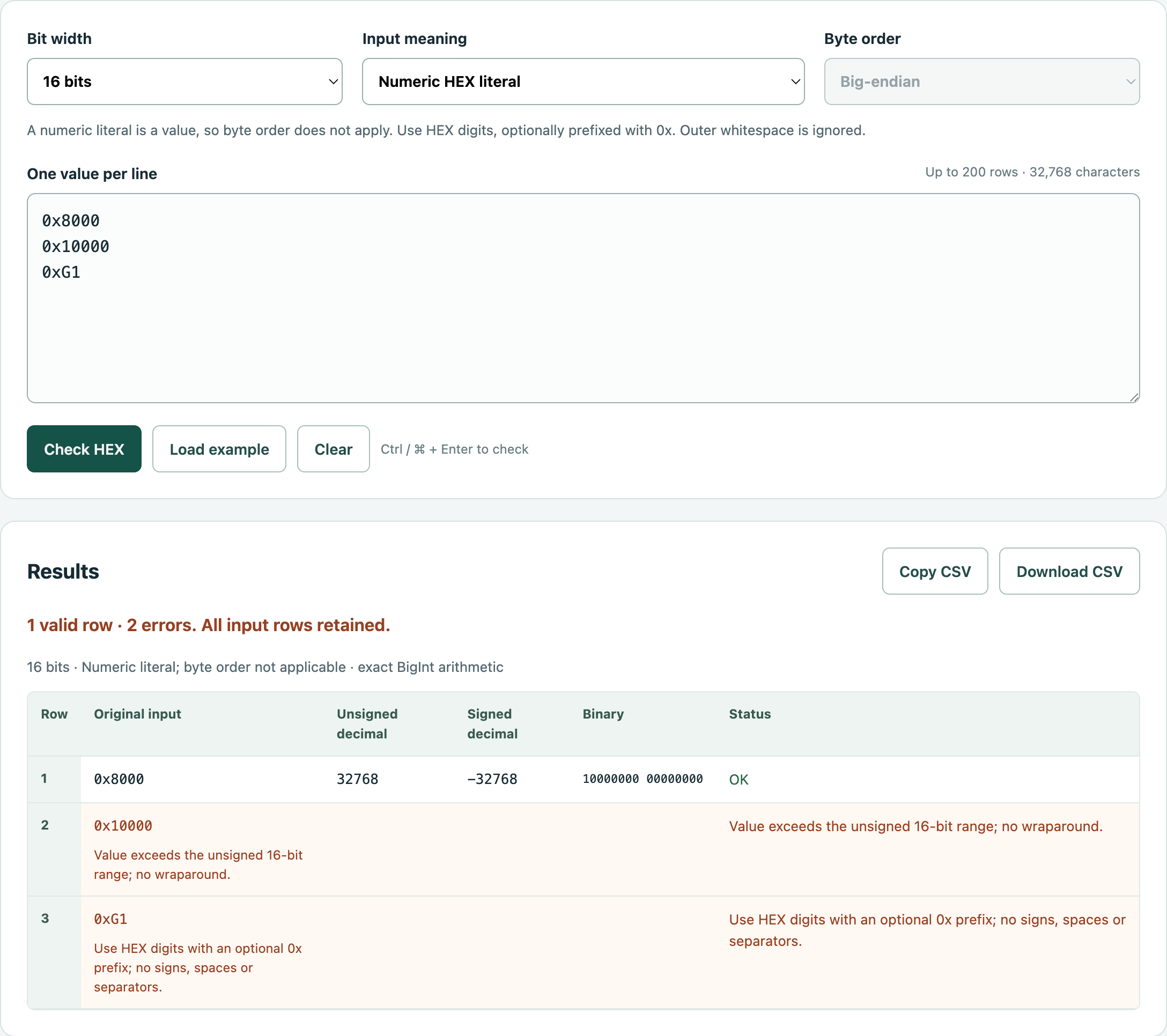
Figure 2: One valid result and two errors, with the input order preserved.
That sets the processing order: check the format, check the bit-width range, then calculate the signed value. When checking the original data, you can trace each problem directly to its row.
Handle byte order separately
0x8000 expresses a numeric value. In a protocol or file, 80 00 is a sequence of bytes whose order also matters.
For a 16-bit value, big-endian puts the high byte first, so 80 00 reads as 0x8000. Little-endian puts the low byte first; the same 80 00 reads as 0x0080, or 128.
The interface therefore offers two input modes: Numeric HEX literal for values and Byte sequence for bytes. With byte input, choose Big-endian or Little-endian next. In numeric mode, the byte-order setting is disabled.
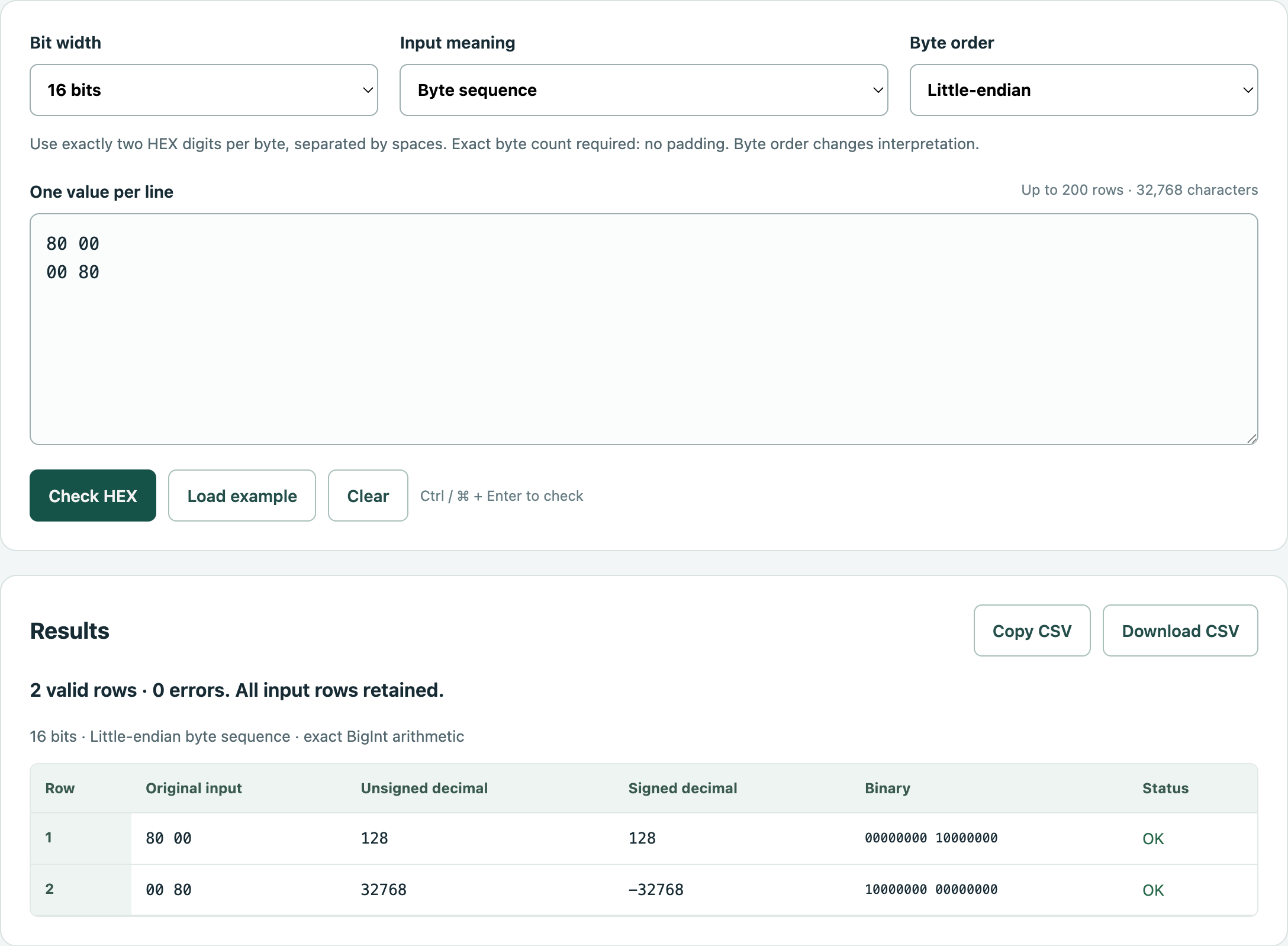
Figure 3: The results for 80 00 and 00 80 in little-endian mode.
This version supports 8, 16, 32, and 64 bits. Choose the width and input mode, paste the data, and check the batch. Changing a setting clears the old results; CSV export becomes available again after recalculation.
Export keeps the decimal values as strings. When opening the data in a spreadsheet, import the large-integer columns as text so the full digits remain available for checking.