MP3 to MP4 with an image in your browser
Create a cover video locally with H.264 and AAC, understand dimensions and encoding, and check the actual duration and exported file.
You have a recorded explanation and want to share it somewhere that accepts video. A single cover image can provide the picture, but the exported MP4 still needs the complete cover, the full audio, the right duration, and a format the destination can play. Renaming the file to .mp4 does not create any of those things.
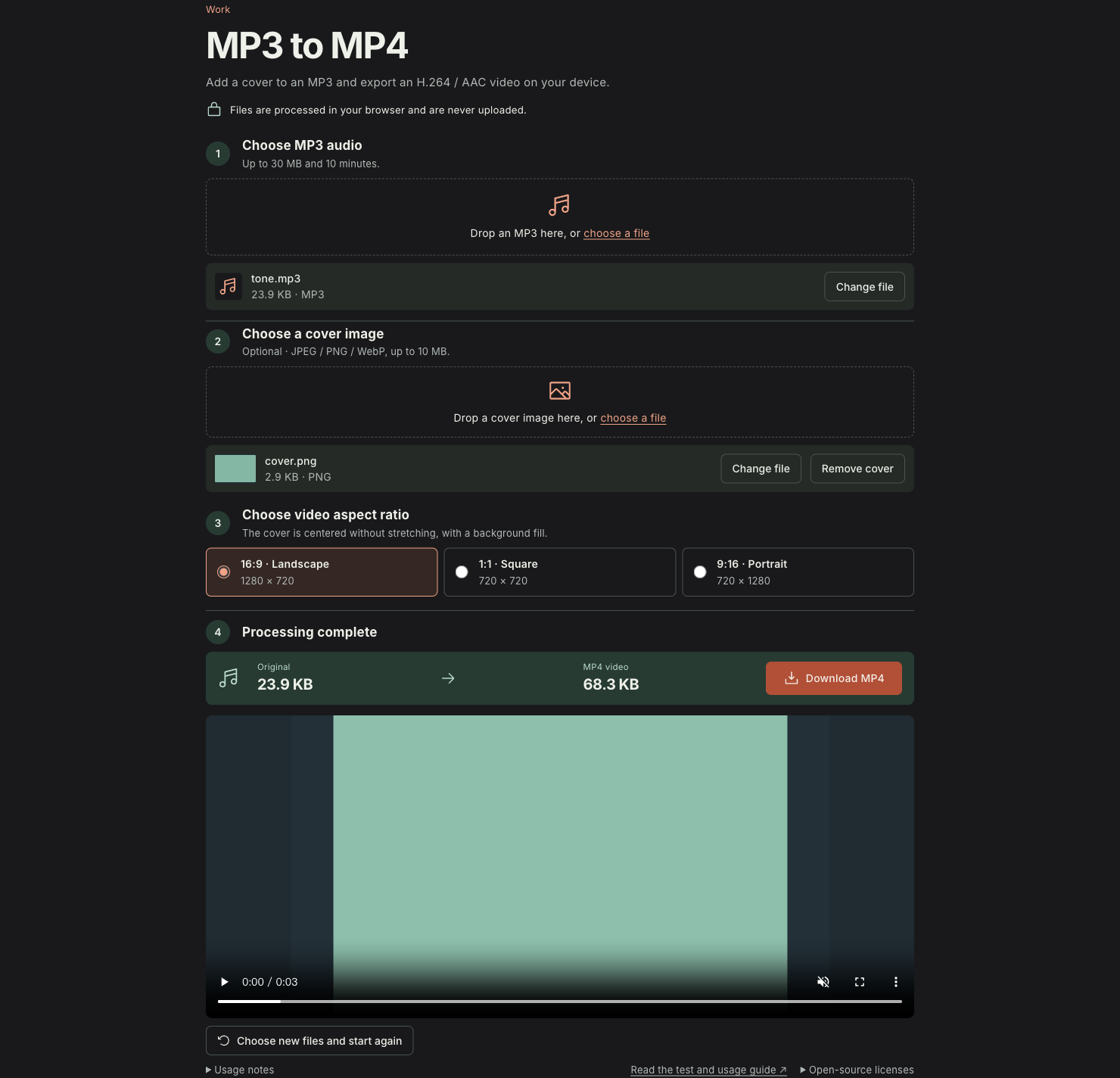
Select the audio, cover, and video dimensions. The result area shows the file size and offers a download.
Trylog’s MP3 to MP4 with an image tool reads the MP3 and image in your browser, uses the device’s H.264 and AAC encoders, and packages the result as an independent MP4 file. Your files and generated content stay on the device; the webpage loads the code needed to run. This article explains the workflow, actual output, and the choices that matter when setting dimensions and checking the result.
What MP3 the image and MP4 each provide
MP3 stores compressed audio. The image supplies one still picture, which needs to cover the audio’s entire timeline. This tool decodes the MP3 into an audio buffer, creates the sustained cover picture, encodes sound and picture separately, and writes them into MP4.
MDN’s guide to media containers distinguishes the container from the encoded streams inside it. MP4 organizes audio, video, timing information, and metadata; H.264 and AAC determine how the respective tracks are compressed. Files with the same .mp4 extension can contain different codecs, with different playback support.
This tool exports H.264 video and AAC audio. Since the input is MP3, the audio is encoded again. A higher output audio bitrate cannot recover details lost during earlier MP3 compression. Keeping your best original recording is more useful than repeatedly transcoding it.
Start with the video dimensions
Open the tool, choose an MP3, and select a cover image you own. JPEG, PNG, and WebP are accepted. With no image selected, the tool generates a default Trylog cover locally. Then choose landscape 1280 × 720, square 720 × 720, or portrait 720 × 1280. Pick the aspect ratio for the destination before exporting, so you do not have to crop the video again afterward.
The cover is scaled proportionally and centered, with a dark background filling the remaining space. A landscape image in a portrait video may leave substantial space above and below it, preserving titles, credits, and edge details. The tool uses padding, does not stretch the image, and offers no crop option. To fill the entire frame, prepare the image at the target aspect ratio in an image editor first.
For example, fitting a 1600 × 900 image into a 1080 × 1080 square produces an image about 1080 pixels wide and 608 pixels high, with roughly 236 pixels above and below. This is a geometry example, not one of the tool’s available output sizes. The same proportional fitting applies to its three actual sizes.
Start processing, wait for completion, and download the result. You can cancel during generation. Changing an input or the dimensions clears the old result, so you need to generate again. The download is an independent MP4; the local preview is a checking aid, and you should keep the downloaded file after closing the browser.
Check a real sample
The test used a self-made three-second sine-wave MP3 and an original 480 × 320 color-block image to export a landscape video. Neither contains personal or client information, making them suitable for checking codecs and dimensions.
| Item | Observed result |
|---|---|
| Input MP3 | 24,467 bytes, three-second sine wave |
| Cover image | PNG, 480 × 320, 2,976 bytes |
| Exported file | MP4, 69,937 bytes |
| Video dimensions | 1280 × 720 |
| Container duration | 3.072 seconds |
| Local preview | Playback time advanced from 0 to about 0.234 seconds, with no media error |
Exporting the same short audio without an image, using the default cover and portrait 720 × 1280, also produced a 3.072-second file. These results describe the two short samples. Time and memory for long audio, more complex covers, or other devices depend on the actual input and browser.
The MP4 is larger than the MP3 because it adds a video track, re-encoded audio, and container information. Converting MP3 with an image is intended to produce a playable cover video; the original audio size cannot directly predict the finished file’s size.
Follow the audio duration and listen to the end
The tool assigns timing to the cover from the decoded audio duration, using one frame per second for the still picture. The input is described as three seconds, while the MP4 container reports 3.072 seconds. Encoding frames and container timing boundaries can produce small differences; that difference alone does not establish missing audio or extra silence.
With your own narration, check the total duration and listen to the opening, transitions, and final word. Seek into the middle to confirm that picture and sound continue. The advancing preview time shows that the sample can begin playing; the checks in the table do not replace listening to the whole recording. A successful download and an openable file also do not verify the audio ending or acceptance by the destination platform.
If there is no sound, check whether the player is muted and whether the file has an audio track. For a wrong aspect ratio, check output dimensions and the source image ratio. A substantially shorter duration calls for checking whether the input decodes completely and generation has finished. A media information utility can inspect the video and audio codecs, dimensions, and durations for comparison with the original recording.
Bitrate affects size but a target is not a size promise
A rough estimate is file bytes ≈ (video bitrate + audio bitrate) × duration in seconds / 8, plus container and metadata overhead. At a combined 1,000,000 bit/s, one minute of media data would be about 7,500,000 bytes. The formula explains the relationship; actual encoding bitrate varies.
The current implementation sets a video target of about 1.5 Mbps and an audio target of 192 kbps. A still cover barely changes between adjacent frames, so the encoder can exploit repetition. A target bitrate does not mean the same amount of data is written every second. The actual sample is only 69,937 bytes; target settings alone cannot dictate its size.
The tool fixes these encoding settings and exposes the common choice of aspect ratio. Fine textures, small text on the cover, larger output dimensions, and longer audio change processing costs. Choose a size that satisfies the destination and keeps text legible, then inspect the actual output size. A larger canvas or a higher number does not automatically make a better video.
Browser encoding and file packaging are separate steps
WebCodecs exposes browser audio and video encoding and decoding, but its encoded chunks are not yet a playable file. The tool uses Mediabunny to write the encoded sound and picture into MP4, arranging tracks and timing information.
Before processing, the page checks the current device’s H.264 and AAC encoding support. This local browser passed the check and completed the samples; other browsers and systems may report unsupported features. A recent Chrome, Edge, or Safari is a starting point to try, with the actual result determined by detection on that device. If an encoder is unavailable, the tool stops with a message rather than sending the files to a server.
The MP3 limit is 30 × 1024 × 1024 bytes, the cover limit is 10 × 1024 × 1024 bytes, and audio may be at most ten minutes long; the interface abbreviates these as 30 MB and 10 MB. A task is stopped after five minutes of processing. Ten minutes is an input limit, not evidence that every device can process a ten-minute recording successfully.
Audio is decoded into memory first. At 48 kHz, two channels, and four bytes per PCM sample, ten minutes of audio data would take about 230,400,000 bytes, before input, runtime code, canvas, encoding buffers, and output. On a phone, begin with short audio. If memory or processing time runs out, shorten the recording, lower the output dimensions, or use trusted local software.
Keep the original MP3, cover, and exported MP4, then check playback and aspect ratio where you intend to publish. Conversion produces the packaged video; the destination application still determines whether its picture, duration, and format satisfy the publishing requirements.