One formula definition for a calculator, inverse solver, and printable worksheet
Use one Celsius–Fahrenheit definition to generate calculator results, inverse values, and a printable answer key, with independent numeric tests and an actual A4 print check.
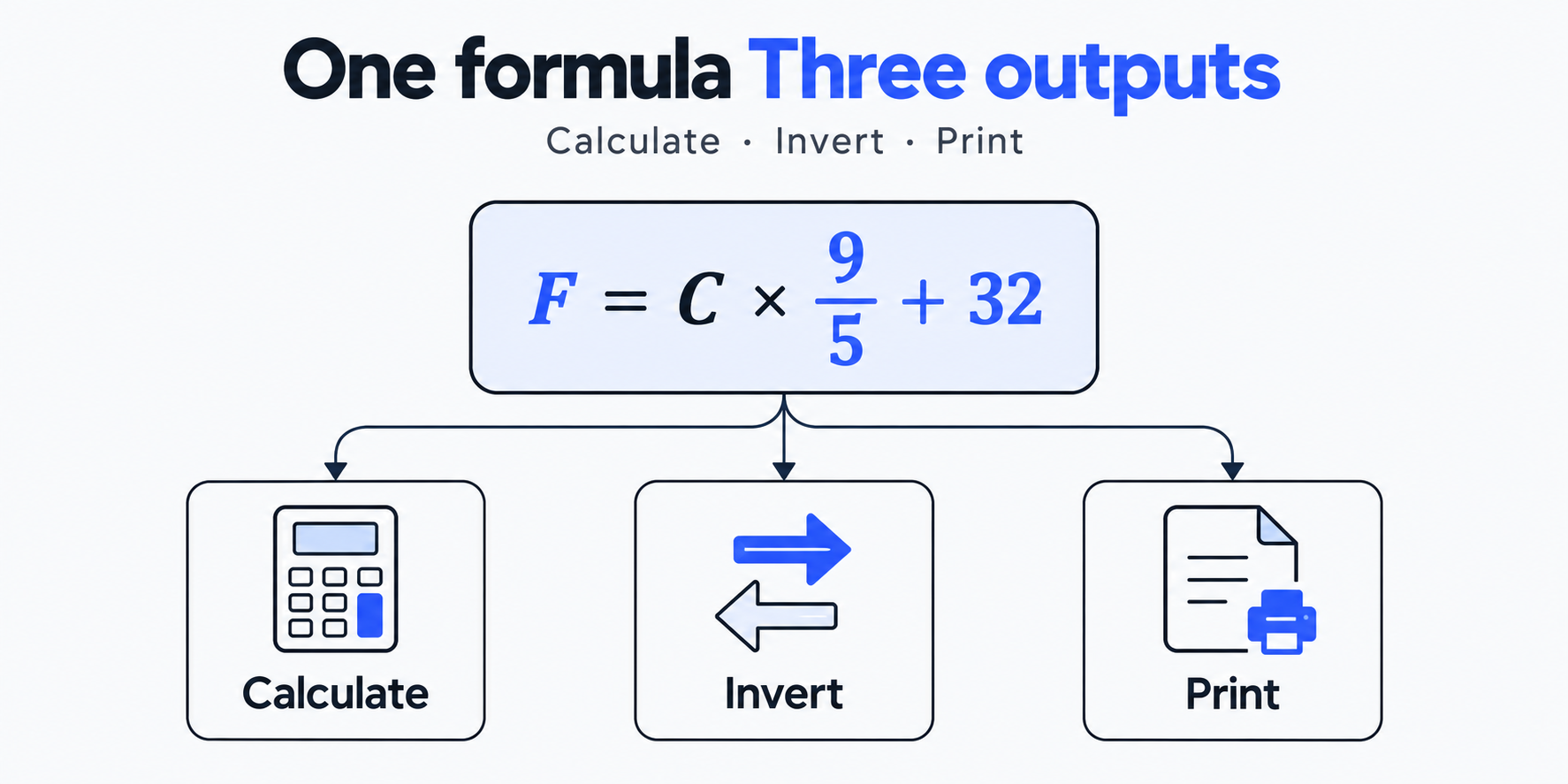
Writing a temperature conversion separately in a calculator, an exercise answer, and a print page makes it easy for a later edit to leave them inconsistent. This prototype maintains the coefficients, offset, variables, and units of one Celsius-to-Fahrenheit formula. The calculator, inverse result, and five printable exercises all read that definition.
The observed result is 37 °C → 98.6 °F, with 98.6 °F → 37.0 °C in the other direction. The fourth printed answer also reads 98.6 °F. The example covers a linear relationship with a constant offset, more precisely an affine relationship: y = a × x + b, where a ≠ 0.
The idea came from a developer’s post about one formula definition generating static calculators, practice, and print outputs. The author describes expression trees with typed variables that generate pages solved for each variable, exercises, answer keys, and PDFs. They also report Excel exports with real formulas and end-to-end checks in LibreOffice and Apple Numbers. Page and test counts are the author’s reports. The temperature example below is an independent implementation using a smaller affine data structure.
Store the relationship before the display policy
NIST’s temperature conversion table gives F = C × 1.8 + 32 and the reverse C = (F - 32) / 1.8. Put a = 9/5 and b = 32 in one definition, then select the evaluation path according to the target variable.
export const formula=Object.freeze({id:'celsius-fahrenheit',input:{symbol:'C',unit:'°C'},output:{symbol:'F',unit:'°F'},scale:9/5,offset:32,displayDigits:1});
export function solve(target,value,f=formula){
 if(!Number.isFinite(value))throw new Error('Enter a finite number');
 if(!Number.isFinite(f.scale)||f.scale===0||!Number.isFinite(f.offset))throw new Error('Formula must be invertible');
 if(target===f.output.symbol)return f.scale*value+f.offset;
 if(target===f.input.symbol)return (value-f.offset)/f.scale;
 throw new Error('Unknown target variable');
}
export function format(value,f=formula){if(!Number.isFinite(value))throw new Error('Result is not finite');return value.toFixed(f.displayDigits);}
export function worksheet(f=formula){return [-40,0,20,37,100].map((value,i)=>({question:`${i+1}. Convert ${value} ${f.input.unit} to ${f.output.unit}`,answer:`${format(solve(f.output.symbol,value,f))} ${f.output.unit}`,step:`${value} × ${f.scale} + ${f.offset}`}));}
Save this as formula.mjs. solve("F", 37) returns the value before display rounding; format(...) produces text with one decimal place. The inverse is derived from the same scale and offset, so changing the relationship does not require editing a second set of constants. The five worksheet inputs use the same evaluator, and their symbols and units come from the definition.
Units here form an input/output contract. Celsius and Fahrenheit have different zero points, so the conversion adds 32. Multiplying by 1.8 alone confuses a temperature interval with an absolute temperature reading. This small structure does not automatically check dimensions in other formulas; adding length, time, or money requires separate unit rules and validation.
Let the interface read the definition and result
The browser chooses the target variable, reads the known value, and calls solve. Reject an empty field before parsing: Number("") is zero, so a direct conversion would turn “not entered” into a valid zero. Check Number.isFinite after parsing and reject a non-finite result before display.
if (!input.value.trim()) throw new Error("Enter a finite number");
const known = Number(input.value);
const value = solve(target.value, known);
const unit = target.value === formula.output.symbol
  ? formula.output.unit : formula.input.unit;
result.textContent = `${format(value)} ${unit}`;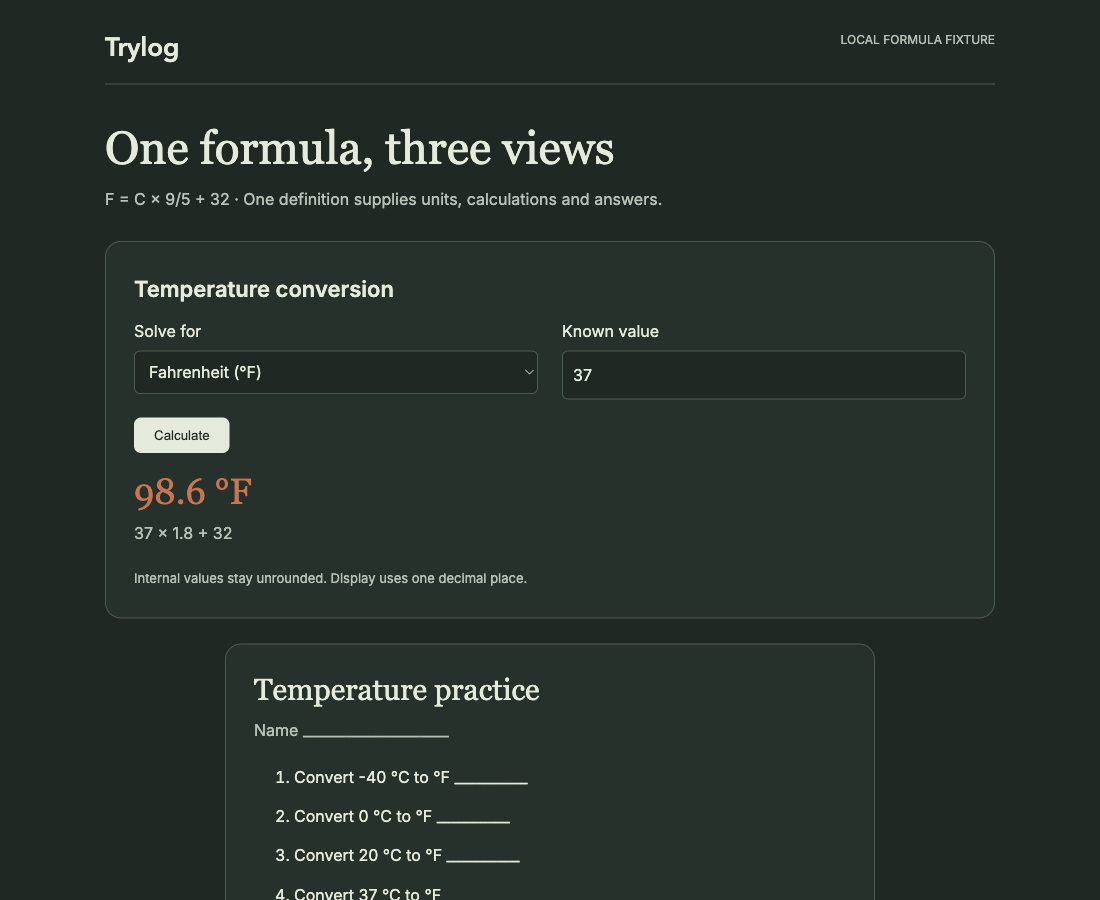
The original English calculator shows the result and calculation step for 37 °C.
Selecting Celsius and entering 98.6 displayed 37.0 °C, with (98.6 − 32) ÷ 1.8 as the step. Clearing the field displayed Enter a finite number. The interface calculates in the browser without a backend. The engine itself has no DOM dependency and can be checked in Node.
To reproduce the example, save formula.mjs in an empty directory, then save the following index.html. Run python3 -m http.server 8080 --bind 127.0.0.1 in that directory and open http://127.0.0.1:8080. Serving over HTTP avoids module access restrictions encountered with directly opened local files.
<!doctype html><html lang="en">
<meta charset="utf-8">
<meta name="viewport" content="width=device-width,initial-scale=1">
<title>Temperature formula example</title>
<style>
body { max-width: 650px; margin: 30px auto; padding: 20px; font: 16px/1.8 sans-serif; }
label, output { display: block; margin: 12px 0; }
li { margin: 12px 0; }
@media print {
  @page { size: A4; margin: 18mm; }
  body { background: white; color: black; margin: 0; padding: 0; }
  .controls { display: none; }
  #sheet { break-inside: avoid; }
}
</style>
<section class="controls">
  <label>Solve for <select id="target"><option>F</option><option>C</option></select></label>
  <label>Known value <input id="value" type="number" step="any" value="37"></label>
  <button id="calculate">Calculate</button><output id="result"></output>
</section>
<section id="sheet"><h1>Temperature practice</h1>
  <ol id="questions"></ol><h2>Answer key</h2><ol id="answers"></ol>
</section>
<script type="module">
import { formula, solve, format, worksheet } from './formula.mjs';
const input=document.querySelector('#value'),target=document.querySelector('#target');
const result=document.querySelector('#result');
function calculate(){
  try {
    if (!input.value.trim()) throw new Error('Enter a finite number');
    const unit=target.value===formula.output.symbol?formula.output.unit:formula.input.unit;
    result.textContent=`${format(solve(target.value,Number(input.value)))} ${unit}`;
  } catch (error) { result.textContent=error.message; }
}
document.querySelector('#calculate').onclick=calculate;
calculate();
for (const row of worksheet()) {
  const question=document.createElement('li'),answer=document.createElement('li');
  question.textContent=row.question.replace(/^\d+\. /,'')+' __________';
  answer.textContent=`${row.step} = ${row.answer}`;
  document.querySelector('#questions').append(question);
  document.querySelector('#answers').append(answer);
}
</script></html>
This compact page uses one module for calculator results and printed answers. The screenshots show the local teaching fixture with additional Trylog styling.
Generated answers need independent expectations
“A calculator result equals its generated answer” proves that two views use the same logic. If the definition accidentally uses 23 instead of 32, both can be wrong together. Test against independently established values, then compare forward and inverse calculations.
| Celsius input | Known Fahrenheit result | Inverse Celsius result |
|---|---|---|
| −40 °C | −40 °F | −40 °C |
| 0 °C | 32 °F | 0 °C |
| 20 °C | 68 °F | 20 °C |
| 37 °C | 98.6 °F | 37 °C |
| 100 °C | 212 °F | 100 °C |
These five expectations were checked separately using the conversion relationship; 0→32 and 100→212 also match the NIST table. Here 100 °C is a conversion input, without assuming water boils at exactly that temperature at every pressure. Node checks covered the inverse, display rounding, non-finite input, unknown variables, and a zero coefficient. All fifteen assertions passed.
import assert from "node:assert/strict";
import { formula, solve, format, worksheet } from "./formula.mjs";
const known = [[-40,-40],[0,32],[20,68],[37,98.6],[100,212]];
for (const [c,f] of known) {
  assert.ok(Math.abs(solve("F",c)-f) < 1e-12);
  assert.ok(Math.abs(solve("C",f)-c) < 1e-12);
}
assert.equal(format(solve("F",1)), "33.8");
assert.throws(() => solve("F",NaN));
assert.throws(() => solve("F",1,{...formula,scale:0}));
assert.throws(() => solve("X",1));
assert.equal(worksheet()[3].answer, "98.6 °F");
Save it as test.mjs and run node test.mjs. Numeric comparison uses a tolerance because JavaScript Number uses binary floating point. toFixed(1) is a display operation: do not feed its string back into the inverse, or treat it as an exact decimal rounding policy for business rules. One decimal place works for this temperature lesson; money and strict measurement require an explicit decimal policy.
Print is a separate reading environment
The print view takes questions, steps, and answers from worksheet(). Five fixed inputs make refresh and export consistent. Print styling explicitly uses white paper and black text, hides the calculator and navigation, and sets A4 margins. Questions and answers share one page for review and teaching; a student handout could put the answer key on a separate page.
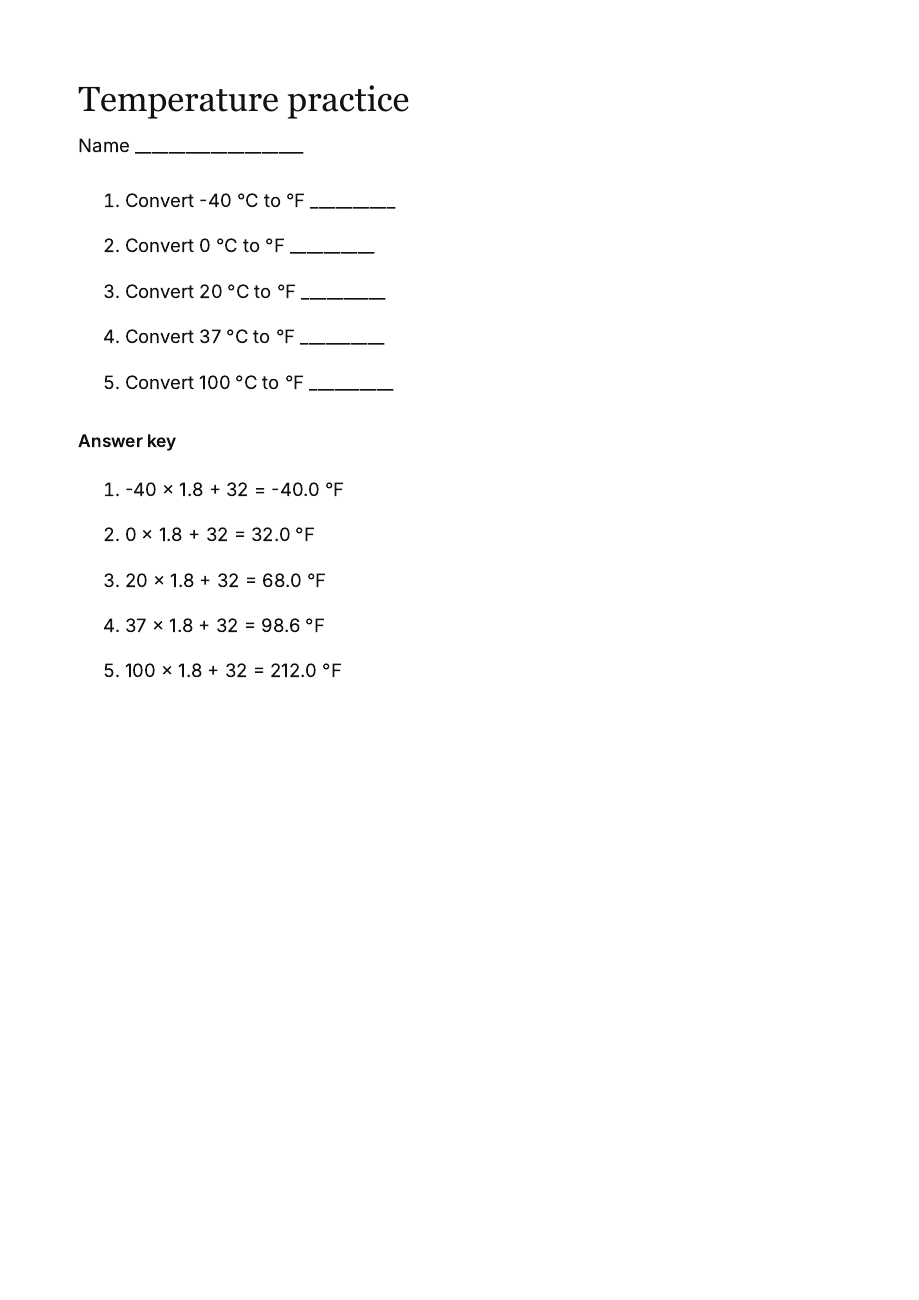
One page from the actual printed PDF; question four agrees with the calculator at 98.6 °F.
The local fixture produced a one-page A4 PDF through Chromium printing. Rendering it confirmed all five questions and answers, units, whitespace, and the absence of clipping or dark background residue. Screen checks also covered desktop and a 390-pixel viewport. Physical printers and pagination in other browsers have not been tested.
Where this abstraction stops
A zero scale would make the inverse divide by zero, so the evaluator rejects it. Quadratic relationships, piecewise definitions, several unknowns, and non-monotonic functions introduce multiple solutions, domains, and selection rules that this affine evaluator does not handle. Multi-step explanations and diagrams also need their own content structure; a numeric result alone cannot supply them.
The prototype maintains one relationship and obtains consistent forward values, inverse values, and printed answers. Independent expectations check whether that relationship is correct. Try those three outputs with one formula of your own before deciding whether an expression tree or a larger formula registry is useful. For larger integer inputs, see Preserve precision with BigInt when converting HEX to decimal.