Compress PDFs locally in your browser and check the quality
Choose between structure rewriting and whole-page image compression, compare two measured samples, and check file size, text, page count, and image quality.
A PDF attachment can miss the submission limit by only a little. After compression, opening the file is just the first check. A contract needs searchable, copyable clauses; a scan needs legible small text; photographs need useful detail. Check the size together with the purpose of the document.
The local PDF compression tool offers two paths. Structure mode saves the PDF objects again. Image mode renders each whole page to JPEG and places it in a new PDF. Both process selected files and their outputs in the browser on the current device. Two self-authored files show how to choose a mode and examine the result.
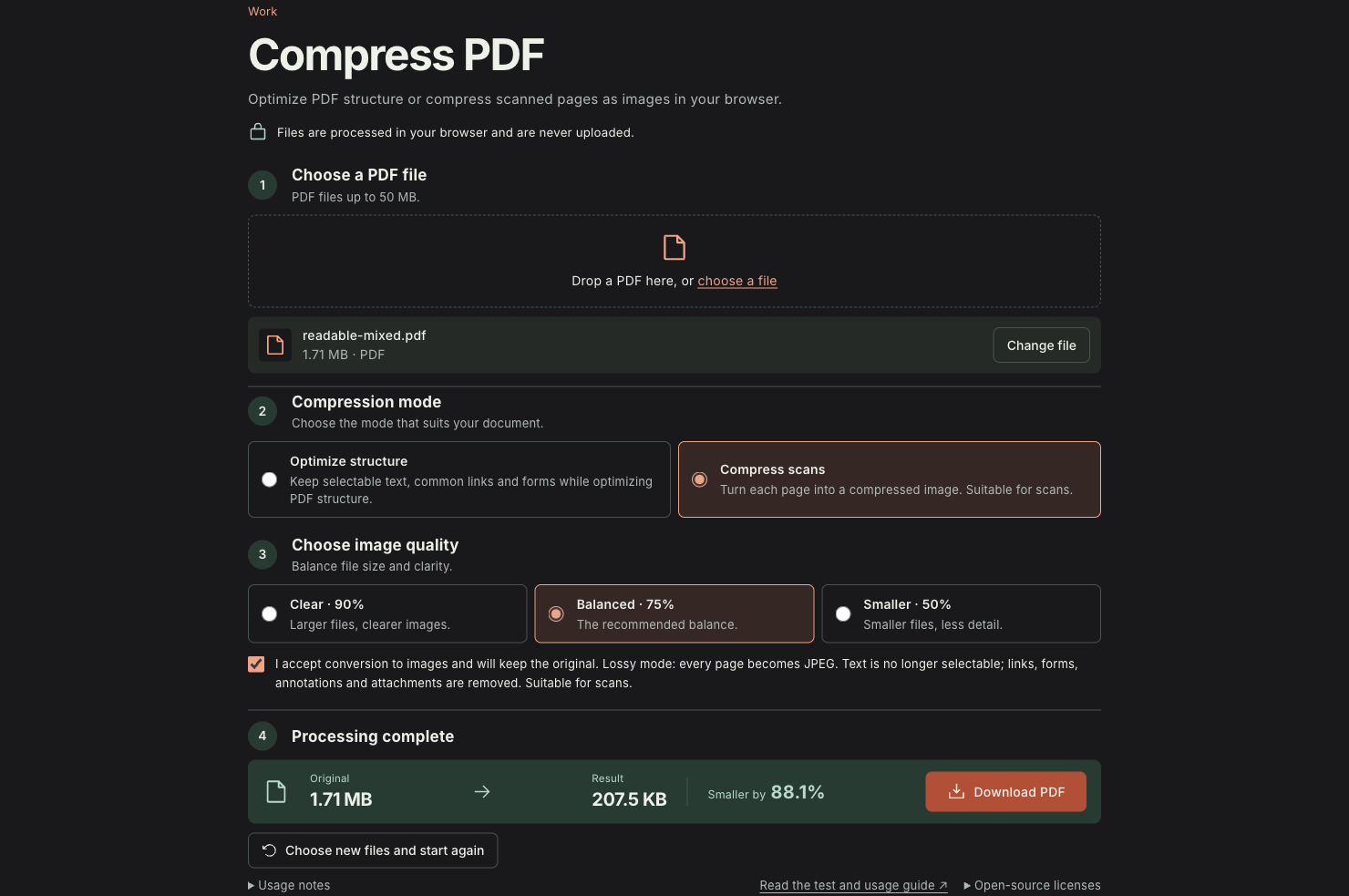
With JPEG quality set to 75%, the tool shows the original and output sizes and offers the new file for download.
Identify what is inside the PDF
A PDF stores more than the picture of each page. Pages can reference text, fonts, images, drawing instructions, and other objects. Several pages may share an image or font. There is no fixed relationship between page count and file size: one high-resolution scan can exceed dozens of text pages, while duplicated resources can make similar-looking files different sizes.
Select a line and copy it. If you obtain actual characters, the file has at least some extractable text. A page that only presents an image may consist mainly of a scan. Some scans have an OCR text layer, so searchability does not imply a small page image. Zoom in on photographs, backgrounds, and small letters to identify what must survive.
Structure rewriting changes how objects are organized and saved. Reducing pixel dimensions or encoding JPEG again changes image data. Rewriting a PDF whose images are already tightly compressed may yield little benefit. A save option alone cannot reduce the resolution of a scan.
Structure mode: retain objects and check their functions
This tool uses the pdf-lib save interface with useObjectStreams. That option changes object storage; it is not a JPEG quality setting. It does not automatically downsample every image or guarantee removal of every redundant resource.
Try structure mode first when text search, links, or form fields matter. The tool offers the rewritten result only when it is smaller than the input. Otherwise it returns the original file and reports that it did not shrink. That outcome only tells you that this rewrite did not produce a smaller file; inspect the content and submission requirements before choosing another approach.
We made a one-page text PDF with two extractable lines, a link, and a form field named name. The measured result was:
| Check | Original | Structure-mode output |
|---|---|---|
| Exact bytes | 2,917 | 1,953 |
| Pages | 1 | 1 |
| Extracted text | Two lines | Both lines identical |
| Form field | name = Trylog | Value retained |
| Annotation objects | Widget and link | Both retained |
| Link destination | https://trylog.blog/ | Identical, still a valid URI string |
The reduction was about 33.05%. This describes the self-authored file on this save path, not a forecast for any PDF. Text, form, and link checks also cover this sample only. Reopen your own contract or complex form and operate the features you need.
Image mode: smaller files can lose the text layer
Image mode renders pages one at a time with PDF.js. The longest page edge is set to 1600 pixels, followed by JPEG encoding at the selected quality: 50%, 75%, or 90%. The new PDF keeps the physical page dimensions and contains page images. It does not rebuild text layers, links, forms, annotations, or attachments. Vector text and lines become pixels too.
This suits a scan or preview copy needed only for viewing. For copying clauses, filling forms, or preserving vector detail, first decide whether that change is acceptable. The tool requires acknowledgement of lossy processing before image mode runs.
Our second sample combines extractable text and a self-generated texture illustration, with 8, 10, 12, and 16 pt lettering for readability checks. At 75% JPEG quality:
| Check | Original | Image-mode output |
|---|---|---|
| Exact bytes | 1,791,466 | 212,499 |
| Pages | 1 | 1 |
| Page dimensions | 595 × 842 pt | 595 × 842 pt |
| Extractable text | 519 characters | 0 characters |
The file shrank by 88.14%, and its selectable text disappeared. The following images are actual renderings of the original and exported documents.
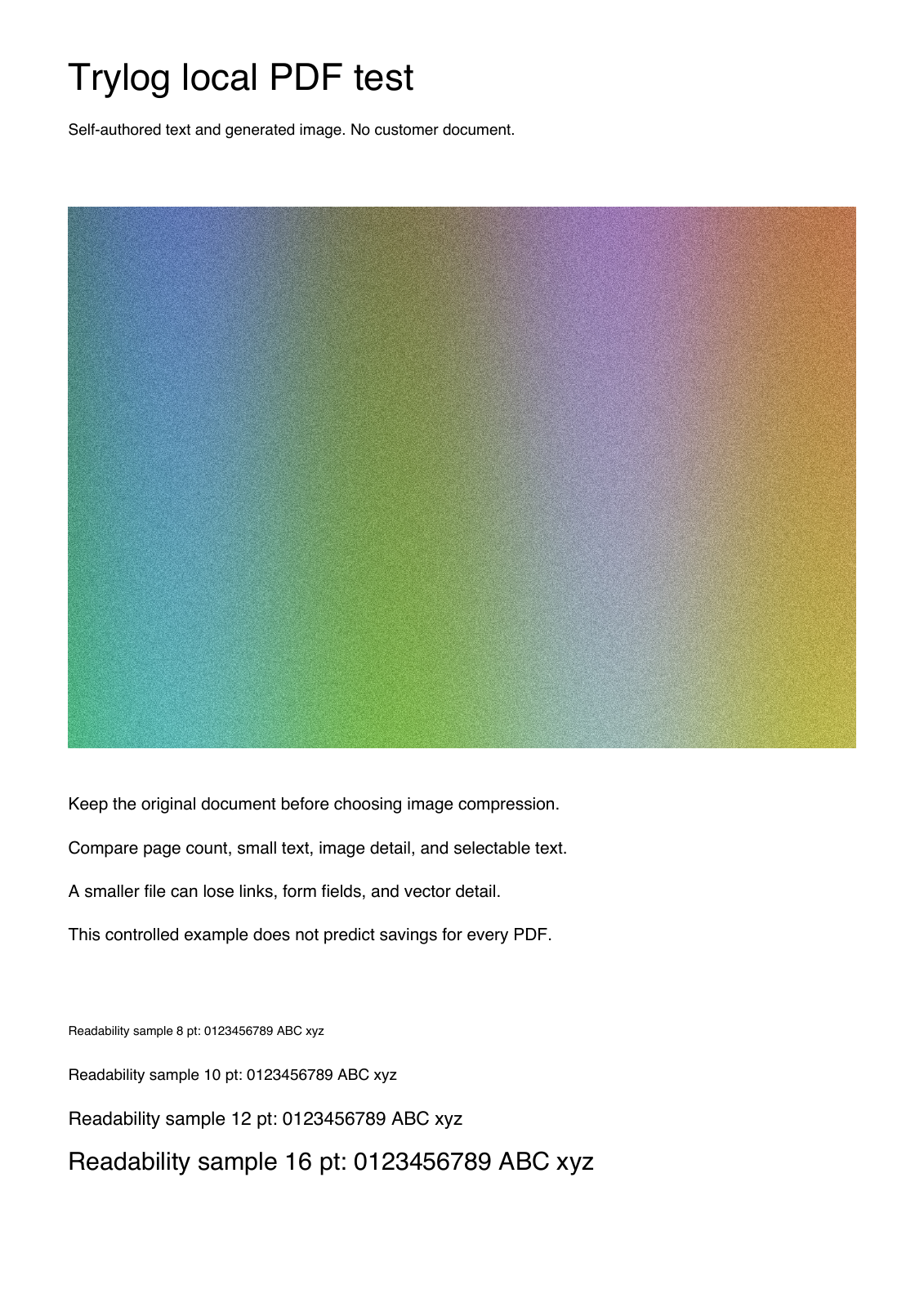
Original: an extractable text layer and generated texture image, with readability samples at several type sizes near the bottom.
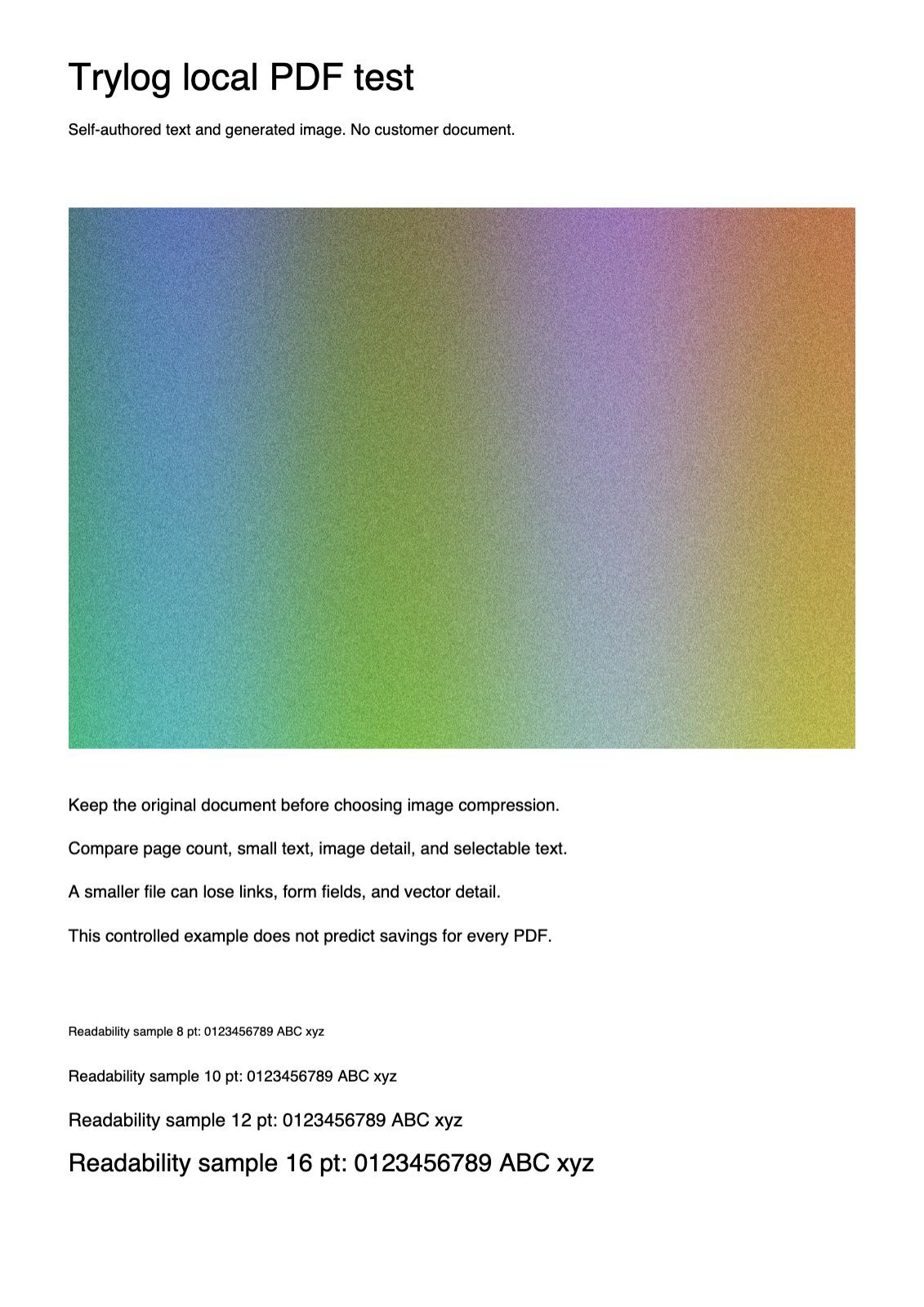
Image-mode output: small text remains legible in this rendering with a 1600-pixel longest edge, while letter edges and texture detail have changed.
We examined this screen rendering and did not test print quality. The 88.14% reduction belongs to this image-heavy sample. Other fonts, scan quality, and existing compression affect both savings and readability.
Check pixel dimensions and JPEG quality separately
Fewer pixels mean less detail. JPEG quality controls how much image information is retained during encoding. Raising quality after a page has been reduced cannot restore lost small letters. Keeping many pixels at very low quality can still blur edges or introduce blocks.
The tool’s 1600-pixel longest edge is not a fixed DPI guarantee. The 842 pt edge of our sample is about 11.69 inches, so 1600 pixels corresponds to roughly 137 pixels per inch. This calculation describes the pixel scale; it does not guarantee legibility in another receipt, drawing, or résumé.
Start image mode at 90%, inspect it, then try 75% or 50% if needed. These presets change JPEG quality while keeping the longest edge at 1600 pixels. If the available pixels are already insufficient, higher quality has limits. Examine the hardest small text, stamp, or line rather than a first-page thumbnail. Keep the result once it meets the attachment limit and serves its purpose.
Select the file, export, and validate
Keep the original in its original location, and note its purpose and the attachment limit. Open the tool, select the PDF, and choose structure or image mode. Image mode also needs a quality choice and acceptance of lossy processing. Download a new file, then check it in this order:
-
Compare exact input and output byte counts. The reduction is
(input bytes − output bytes) / input bytes × 100%. The tool retains the input when it does not shrink. -
Reopen the output. Check page count, order, orientation, and dimensions. Compare small text, an image, and an unusual glyph with the original.
-
Search or copy a sentence. Click links, fill fields, and save if those features are present. Treat image-mode output as an image PDF; visual similarity does not verify document functions.
-
Test the actual use. Print a sample if printing matters, or check the receiving system’s requirements. A browser preview cannot establish every use case.
Near a size boundary, check units too: 1 MB is 1,000,000 bytes, and 1 MiB is 1,048,576 bytes. If needed details prevent further compression, use a permitted way to split or submit the material.
Local processing and device costs
The tool allows one PDF up to 50 × 1024 × 1024 bytes and at most 100 pages. Processing stops after five minutes. It rejects encrypted PDFs and documents where signature fields or related markers are detected. Preserve important signed originals and validate them through the original business process.
The site supplies static program and PDF rendering resources. Selected files, derived page images, and output PDFs are processed on the device without upload. Pages are rendered sequentially, but the browser still holds file bytes, parsed objects, canvases, and output data. Memory needs exceed the input file size.
For example, a 2000 × 3000 RGBA canvas needs about 24,000,000 bytes for its pixel buffer alone, before parsing and encoding costs. That is a buffer-size calculation, not a measurement of this tool’s peak memory. Large or many-page files and limited devices may still stall or fail. Confirm the workflow with a smaller copy, then inspect whether the output fits its purpose.
Structure mode is a useful first attempt when document features matter. Image mode suits viewing copies that can accept rasterization. Choose based on checks of your own file, and keep the original.