React draggable knob for discrete years with touch and keyboard input
Build a discrete React year knob with bounded values, pointer capture, touch cancellation handling, and keyboard controls, backed by an original tested fixture.
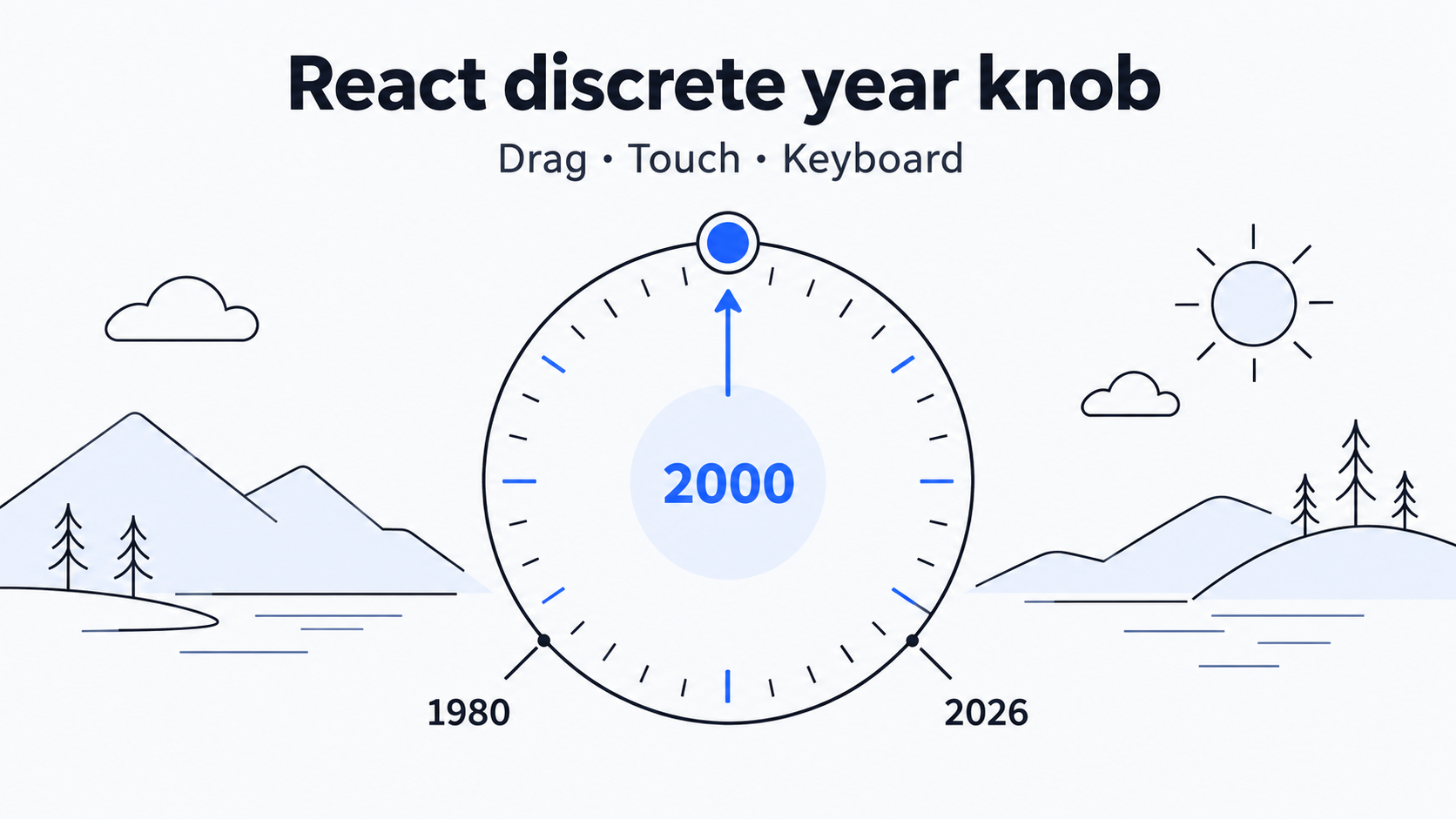
A year knob looks like a circle. The input rules do the harder work: how far a drag moves one year, what happens at the first and last year, whether a finger moves the control or scrolls the page, and how someone selects a value without a mouse.
This original React example uses 1980–2026, starts at 2000, and advances one year for every six CSS pixels dragged upward. The rotating marker is a display. A single integer year is the state, and mouse, touch, and keyboard input all update it. Finish that input path before adding a more elaborate rotation gesture.
The idea came from a post titled Built a custom draggable knob component in React to scrub through decades of music. Its author had deleted the body when I read it, so the visible title establishes only the topic. The mapping, code, and results below belong to the local example built for this article.
Select with distance and display with angle
Mapping the pointer’s angle around a center directly to a year requires circular motion and a policy for crossing the angle boundary. This small year selector uses relative vertical distance instead. On pointer down, it saves the position and year; every subsequent move is calculated against that same starting point. A finger can start anywhere on the dial, much like dragging a numeric field.
const MIN = 1980, MAX = 2026;
const PX_PER_YEAR = 6;
const clampYear = value =>
  Math.max(MIN, Math.min(MAX, Math.round(value)));

// drag.year and drag.y are saved on pointerdown
const next = clampYear(
  drag.year + (drag.y - event.clientY) / PX_PER_YEAR
);
Round first, then clamp to the allowed range. Keeping drag.year unchanged throughout a gesture avoids repeatedly accumulating rounded results. clientY and the sensitivity both use CSS pixels; do not multiply by device pixel ratio. A 60-pixel upward drag advances ten years.
The marker runs from −135° to +135°, using -135 + (year - MIN) / (MAX - MIN) * 270. This angle never determines the value. A keyboard update therefore produces the same marker position as a pointer update.
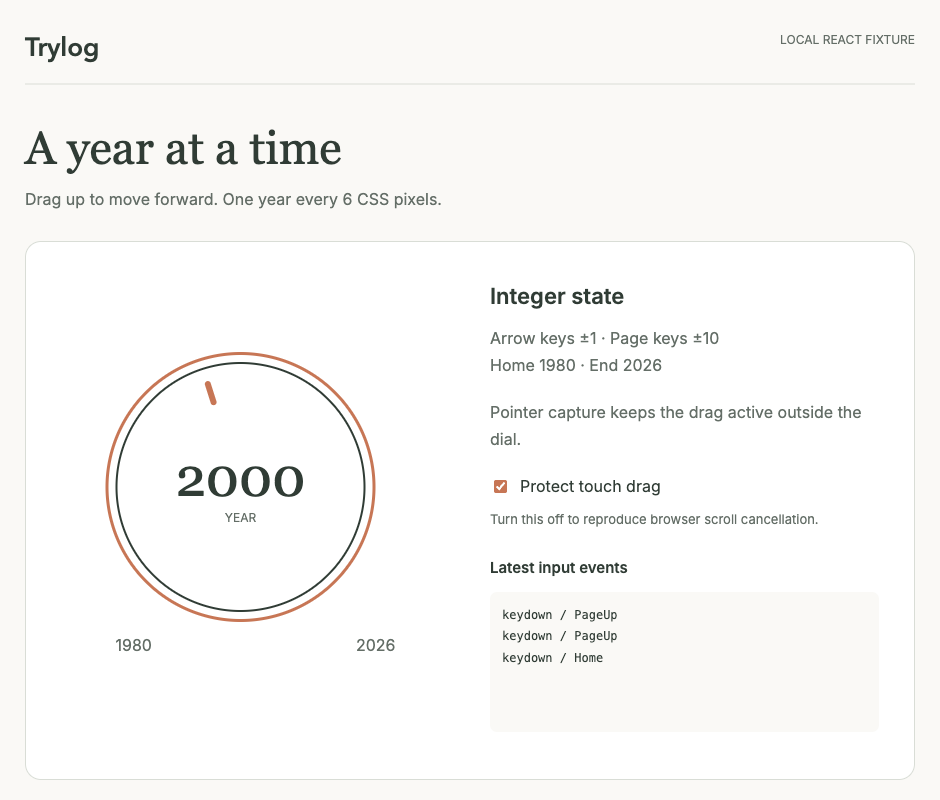
The original English fixture derives the year, marker, and keyboard behavior from the same state.
One Pointer Events path for mouse and touch
React receives browser pointer events through onPointerDown, onPointerMove, and onPointerUp. Accept only the primary pointer and the left mouse button, then bind the gesture to its pointerId. setPointerCapture sends later events to the control even when the pointer leaves the circle. Capture does not prevent the browser from interpreting the gesture as page scrolling; that is the job of touch-action.
The core component below fits into an existing React application. The tested fixture uses React 19.2.0. Import the CSS in the component’s root and render <YearKnob />. To connect a form, pass the integer to the parent when year changes; the parent can perform filtering or persistence.
import { useRef, useState } from "react";
const MIN = 1980, MAX = 2026, PX_PER_YEAR = 6;
const clampYear = v => Math.max(MIN, Math.min(MAX, Math.round(v)));

export default function YearKnob() {
  const [year, setYear] = useState(2000);
  const drag = useRef(null);
  function down(e) {
    if (!e.isPrimary || (e.pointerType === "mouse" && e.button !== 0)) return;
    e.currentTarget.focus();
    e.currentTarget.setPointerCapture(e.pointerId);
    drag.current = { id: e.pointerId, y: e.clientY, year };
  }
  function move(e) {
    const d = drag.current;
    if (!d || d.id !== e.pointerId) return;
    setYear(clampYear(d.year + (d.y - e.clientY) / PX_PER_YEAR));
  }
  function end(e) {
    if (drag.current?.id === e.pointerId) drag.current = null;
  }
  function key(e) {
    const delta = { ArrowUp: 1, ArrowRight: 1, ArrowDown: -1,
      ArrowLeft: -1, PageUp: 10, PageDown: -10 }[e.key];
    if (delta !== undefined) {
      e.preventDefault();
      setYear(v => clampYear(v + delta));
    } else if (e.key === "Home" || e.key === "End") {
      e.preventDefault();
      setYear(e.key === "Home" ? MIN : MAX);
    }
  }
  const angle = -135 + (year - MIN) / (MAX - MIN) * 270;
  return <div>
    <div className="year-knob" role="slider" tabIndex={0}
      aria-label="Year" aria-valuemin={MIN} aria-valuemax={MAX}
      aria-valuenow={year} aria-valuetext={String(year)}
      aria-describedby="year-help" onPointerDown={down}
      onPointerMove={move} onPointerUp={end}
      onPointerCancel={end} onLostPointerCapture={end} onKeyDown={key}>
      <div className="year-marker" style={{ transform: `rotate(${angle}deg)` }}><i /></div>
      <strong>{year}</strong>
    </div>
    <p id="year-help">Arrow keys ±1; Page keys ±10; Home 1980; End 2026.</p>
  </div>;
}
.year-knob {
width: 230px; height: 230px;
border: 2px solid #303c35; border-radius: 50%;
position: relative; display: grid; place-items: center;
touch-action: none; user-select: none; cursor: ns-resize;
}
.year-knob:focus-visible {
outline: 3px solid #c87450; outline-offset: 6px;
}
.year-marker { position: absolute; inset: 12px; pointer-events: none; }
.year-marker i {
position: absolute; top: 0; left: calc(50% - 3px);
width: 6px; height: 24px; background: #c87450;
}useRef stores the temporary gesture origin; useState stores the year that needs rendering. The end handler covers pointerup, pointercancel, and lostpointercapture, preventing an old origin from surviving cancellation. Cancellation keeps the last selected year. A product that needs cancellation to restore the original value would also restore drag.year; this example uses the keep-current-value policy.
An observed touch failure
In a 390×844 Chromium emulated viewport, browser touch input operated the same component. With touch-action: none, a 60-pixel upward drag changed 2001 to 2011. The event sequence contained touch down, move, and up, and page scroll remained zero.
The fixture’s Protect touch drag switch makes the failure visible. Turning it off sets touch-action: auto. Starting at 2011 and dragging upward by 100 pixels delivered only the first two moves to the control. The year stopped at 2014, the browser issued pointercancel, and the page scrolled 85 pixels. Capture was present, but browser scroll arbitration ended the control’s gesture.
Declare touch-action before a gesture begins. Apply the fix only to the knob so the rest of the page can still scroll. Disabling touch scrolling on the whole page would change the reading experience. MDN’s Pointer Events documentation explains the separate roles of capture, cancellation, and touch-action.
This was an actual failure in browser touch emulation. Physical phones, Safari, and mobile screen readers have not been tested. Emulation exposes scroll contention; thumb reach and assistive technology behavior still need device testing when integrating the component.
Verify keyboard rules together with limits
The control has role="slider", tabIndex={0}, a name, and current-value attributes. A role alone does not implement keyboard behavior. The component handles the keys described in the WAI APG Slider Pattern, including arrows, Home, End, and optional Page keys.
| Input | Observed result |
|---|---|
| Home followed by Down | Remained at 1980 |
| End followed by Up | Remained at 2026 |
| Home, PageUp, Right | 1991 |
| Mouse drag upward 60 CSS pixels from 1991 | 2001 |
| Drag from 2000, leave the circle, move upward 280 pixels | Clamped to 2026 and ended normally |
Call preventDefault() only for handled keys, allowing Tab and other browser behavior to continue. aria-valuenow and aria-valuetext express the current year, and the focus outline remains visible in light and dark presentations. Desktop and 390-pixel layout checks found no horizontal overflow; screen reader testing remains separate work.
For a plain year choice, native input type="range" or a select usually costs less to maintain. A custom knob suits a deliberate visual requirement. Keeping integer state, temporary gesture state, and the display angle separate makes later appearance changes easier without disturbing input behavior.
Other numeric fields can hit JavaScript precision limits; see Preserve precision with BigInt when converting HEX to decimal. This example’s small year range fits safely within Number’s integer precision.