A bawkterm workflow: SSH, SFTP uploads, and remote Docker checks
Use one host record for SSH, SFTP, and Docker: verify the connection, upload a sample file and compare SHA-256 hashes, then check remote containers, mounts, and permissions.
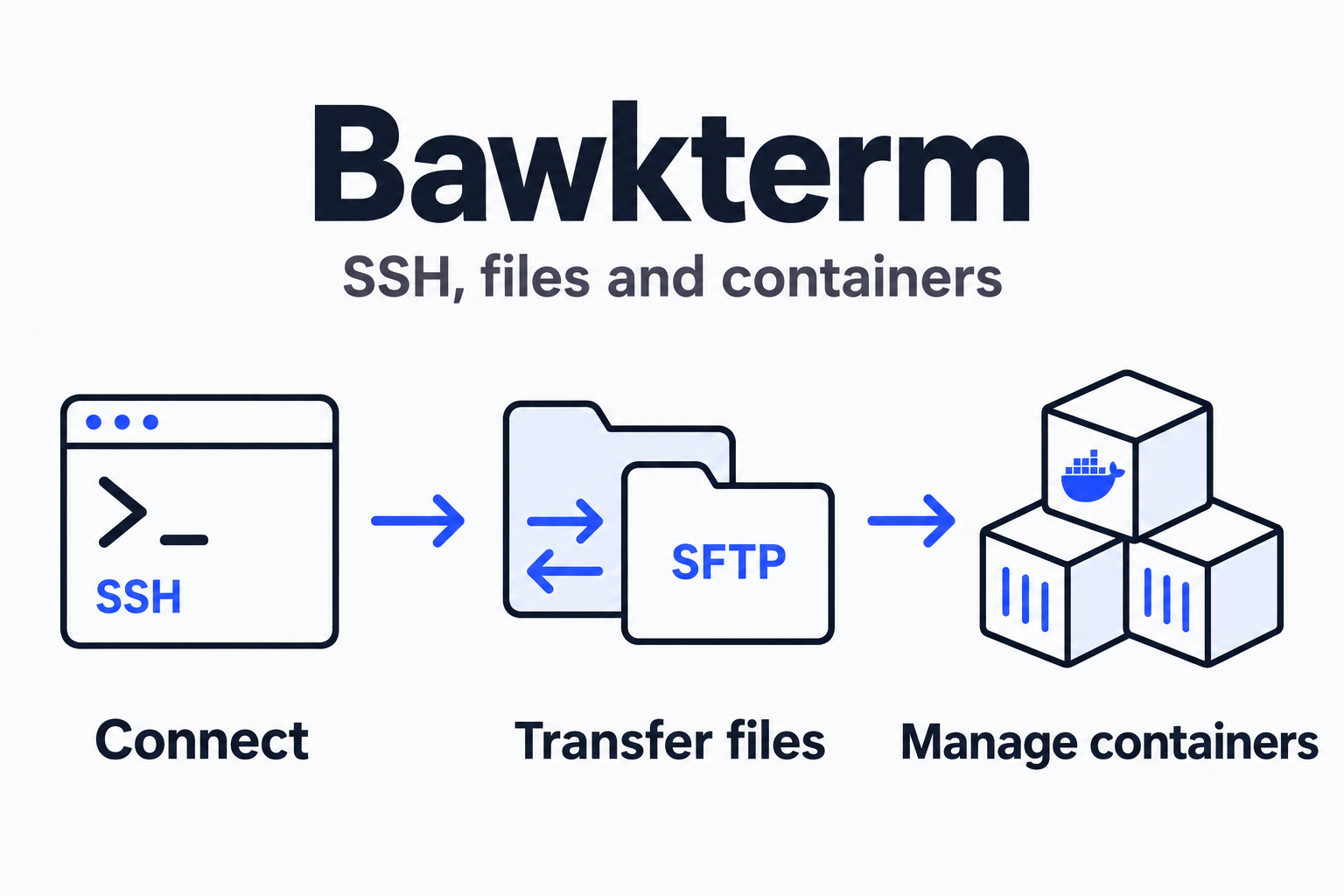
Connection, file transfer, and containers each have a checkpoint on the same remote host.
After uploading a file, you need to know which machine received it, whether its contents are intact, and whether a container can read that location. bawkterm brings an SSH terminal, an SFTP file manager, and a Docker view into one desktop client, so you can organize these steps around the same host record.
This guide follows the official bawkterm v0.8.0 documentation, using a Linux test host you control. Have its address, SSH port, username, and authentication method ready. The remote host needs SFTP enabled; container checks also require the Docker CLI, a running daemon, and permission for your account to access it.
Confirm your SSH destination
Choose a package for your platform from the official release page. macOS packages cover Apple silicon and Intel; Linux packages are x64. Version 0.8.0 is licensed under AGPL-3.0. The project says its builds are not yet code-signed; follow its installation instructions for your platform.
Save the test host as a host record and open its SSH session. For quick connect, press Ctrl+Shift+P, or Cmd+Shift+P on macOS, and enter user@host:port, replacing those values with your own. On the first connection, compare the displayed SHA-256 host fingerprint with the fingerprint supplied by the administrator before accepting it.
Run these example commands in the remote terminal:
hostname
whoami
mkdir -p ~/trylog-demo
The hostname and username identify where you are working. ~/trylog-demo is the upload directory for the next step. Using a directory owned by your account helps distinguish a directory write-permission issue from a login issue.
Upload a file and compare its contents
In a local macOS or Linux terminal, create a file containing only sample text:
mkdir -p ~/trylog-demo-local
cd ~/trylog-demo-local
printf 'task=trylog-demo\nstatus=ready\n' > note.txt
Open the two-pane file manager from the same host record in SFTP. Navigate to the new local directory on one side and the remote trylog-demo directory on the other, then drag note.txt from local to remote. If a file with that name already exists, choose Replace, Keep both, or Skip as appropriate. Check the destination path before replacing an existing file.
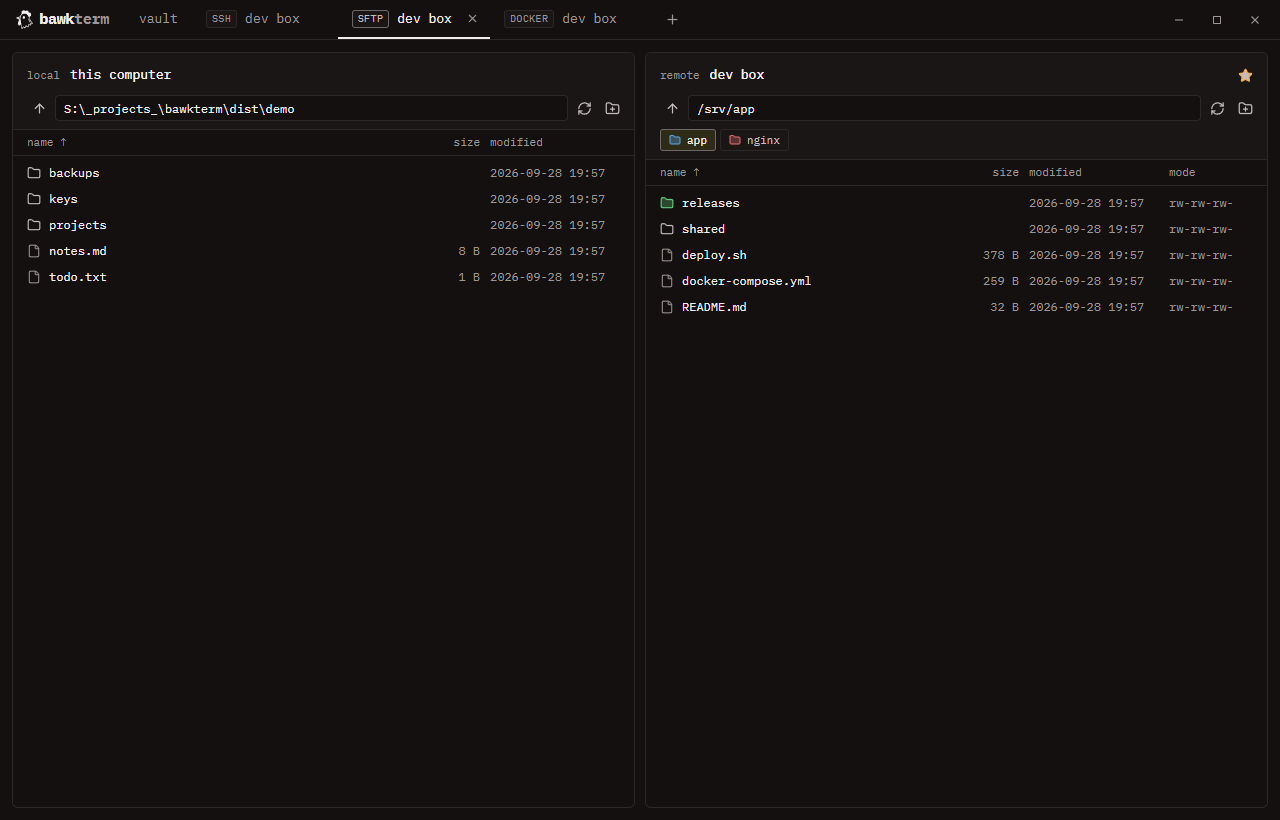
Official interface screenshot: local files on the left, remote files on the right.
Record the local SHA-256 hash:
# macOS
shasum -a 256 note.txt
# Linux
sha256sum note.txt
On Windows, you can create the file in a text editor and calculate its hash with PowerShell’s Get-FileHash .\note.txt -Algorithm SHA256. In the remote SSH terminal, run:
sha256sum ~/trylog-demo/note.txtCompare the hash values from both ends. Matching values confirm that the uploaded bytes match the local file; matching names and sizes alone do not provide that check. If SFTP reports permission denied, check the current remote directory, its ownership, and write permissions. Return to your own upload directory first.
Check remote Docker with the same account
Open the host’s Docker view. The official documentation describes Compose project grouping, container status, CPU and memory readings, and access to logs and a container shell.
First, use these suggested commands in the SSH terminal to check access:
docker version --format '{{.Server.Version}}'
docker ps -a --format 'table {{.Names}}\t{{.State}}\t{{.Status}}'
The v0.8.0 Docker implementation also probes the remote version first. When direct access fails, it may try sudo -n docker. SSH login and Docker access are separate permissions. For an access error, ask the administrator to handle it under the host’s permission policy, keeping the account and error message clear. If the container list is empty, check the current Docker context and the daemon it actually connects to.
After locating the target container, establish how the uploaded file reaches it. SFTP writes to the remote host’s filesystem. A container needs a corresponding bind mount or an explicit copy step. These commands use demo-web as an example container name; replace it with yours:
docker inspect --format '{{json .Mounts}}' demo-web
docker logs --tail 50 demo-web
Check the host-side Source and container-side Destination in the mount information. The upload directory must sit within the corresponding host path. Then use status and logs to check whether the application read the file. running means the container is running; application health requires its health check or a specific response. Use start, stop, or restart once you have established that a change is needed and you have permission to make it.
Keep the target host, upload path, file hash, and container name together. These four details connect the SSH, file, and container steps and make it easier to locate a problem next time.